Smart Detect
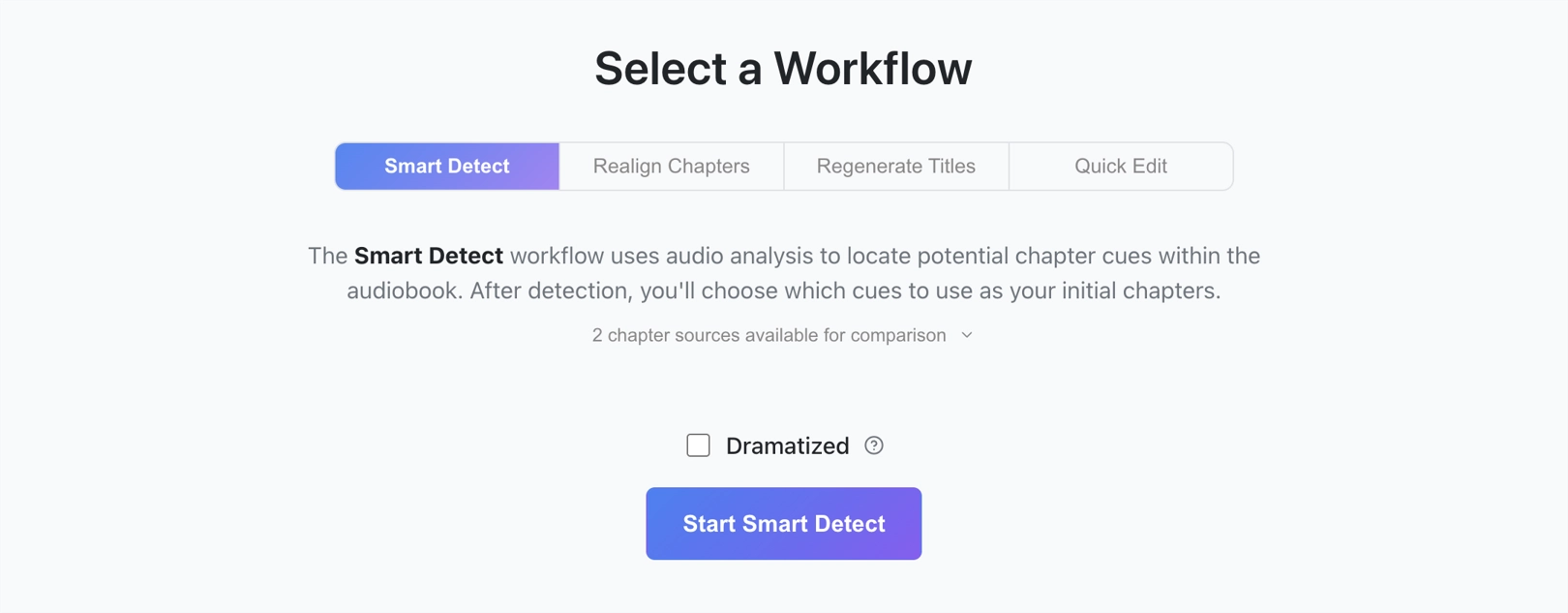
The Smart Detect workflow finds chapter cues by analyzing the audio itself. This is the recommended workflow when your book has no usable References.
When to use it
- New book with no chapters.
- Existing chapters are incorrect.
- You are not sure what you have and want to see what Achew finds.
Steps
- Select a book from Achew's main screen.
- Choose Smart Detect on the Select a Workflow screen.
- Choose a Detection mode. Auto (the default) samples a small portion of the audio to decide for you. Pick Standard for plain narration, or Dramatized for books that contain music or sound effects. Dramatized detection takes much longer, so Auto only switches to it if necessary.
- (Optional) Add or inspect existing Chapter References from this screen. These can be used for comparison once detection finishes.
- Click Start Smart Detect, and Achew will begin analyzing the audio. This process can take anywhere from a few seconds to several minutes depending on the length of the book, how powerful your machine is, and which Detection mode was used.
- After detection has finished, use the Initial Chapter Selection screen (see below) to decide which cues will become chapters, then click Create Chapters.
- On the Transcribe Titles screen, choose your transcription settings. If you have a Reference whose chapter timestamps line up with any of your chosen cues, you can optionally enable Use aligned titles from to pick and choose titles to use directly without transcribing them. See Using aligned titles for details.
- Click Transcribe Titles. The first few seconds of audio at each chapter timestamp will be transcribed into a title.
- After transcription has finished, use the Chapter Editor to review and polish the chapters.
Initial Chapter Selection
Once audio analysis completes, you'll be taken to the Initial Chapter Selection screen. Here you will choose which detected cues to convert into chapters before heading into the Chapter Editor.
Audiobooks differ wildly in pacing, narration style, and mastering. There is no single "correct" setting, so Achew gives you interactive tools to find the right balance for your book.
Timeline Visualization


The timeline visualizes how the selected cues are distributed throughout the audiobook. Each tick mark represents one selected cue (i.e. a chapter that will be created). Use the tools explained below to adjust which cues are selected. You'll typically want to aim for a semi-even distribution of cues across the book's length.
The Cue Selection Slider


Use the main slider to increase or decrease the number of cues that will be turned into chapters.
The bar chart behind the slider displays a histogram showing the distribution of the silence gaps that precede the detected cues:
- Cues on the left have the longest silence gaps and are highly likely to represent real chapters.
- Cues on the right have shorter gaps and are more likely to be false positives (like long pauses between sentences or paragraphs).
Moving the slider to the left will select fewer cues, while moving it to the right will sweep in more cues with shorter gaps. Adjust the slider until the chapter count and timeline distribution roughly match what you expect for the book.
Later on you'll be able to both add and delete chapters, but deleting extraneous chapters is much easier than finding missing chapters, so at this stage it is recommended to err on the side of selecting more cues rather than fewer.
Tip: Look for the valleys
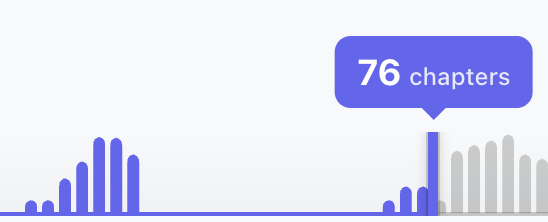
You may see empty 'valleys' in the histogram, representing a clear delineation between gap sizes. You can often get good results by placing the selection slider within such valleys, pushed a bit into the right slope for good measure.
Comparing Alignment
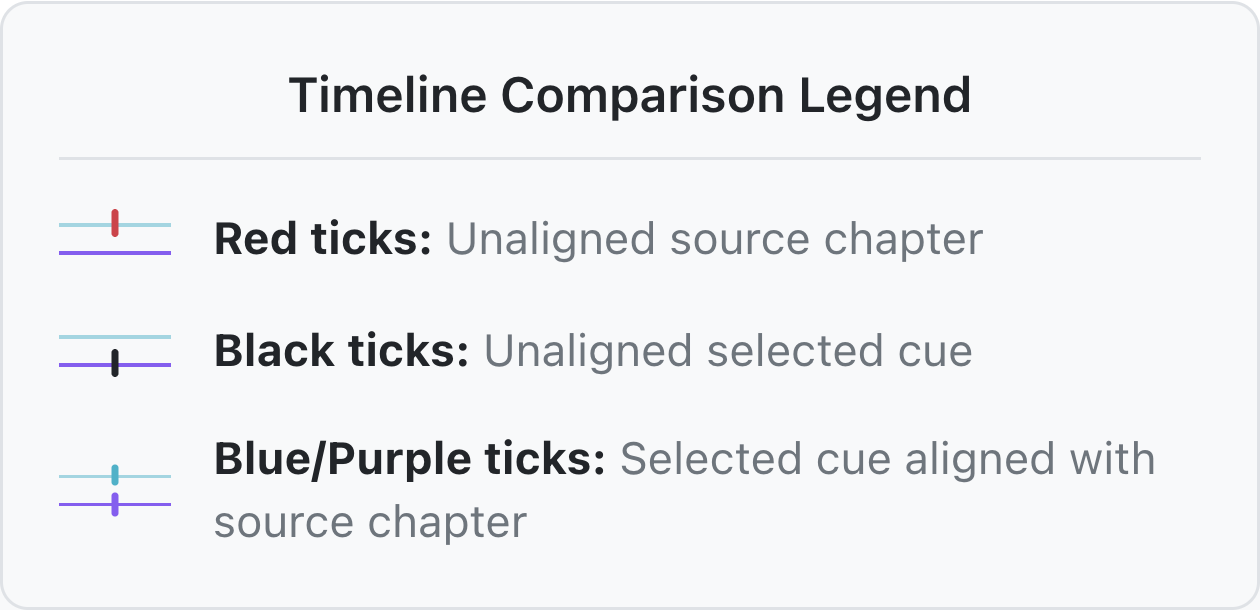
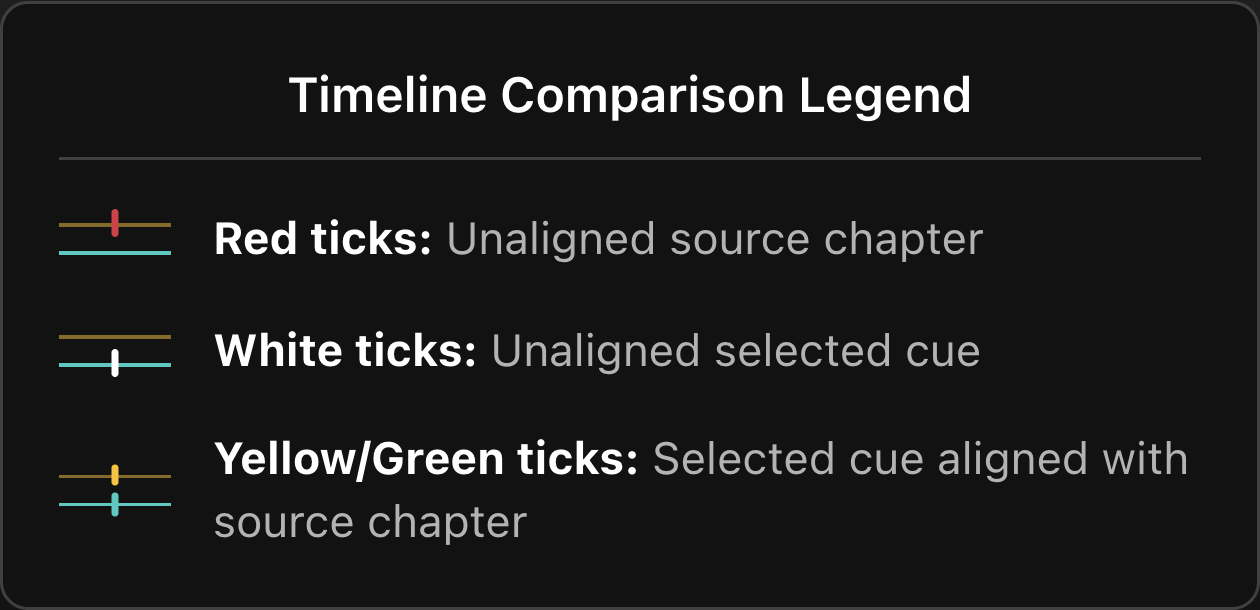
If a Chapter Reference has accurate timestamps, you can compare it to your selected cues by toggling that Reference in the Compare to section of the timeline.


Aim for a high alignment, indicated by the color of the tick marks and the alignment percentage.
Intro/Outro Sensitivity
The Intro/Outro Sensitivity slider adjusts how likely it is that cues near the beginning and end of the audiobook will be included in your selection. If you find that intro and outro tracks are being missed (prologues, epilogues, publisher dedications, etc.), use a higher sensitivity. Conversely, you can lower the sensitivity if you prefer to exclude such tracks.


Example timeline comparison between low and high sensitivity
Including Unaligned Chapters
If there are one or more Chapter References, you'll see a section titled Include unaligned chapters near the bottom of the page, with a checkbox for each Reference. The count in parentheses next to each Reference is the number of chapters that don't line up with any of the selected cues.
Checking the box for a Reference will cause its timestamps to be included when chapters are created, on top of the cues already selected by the slider. This is helpful when a Reference has accurate chapter breaks that Smart Detect couldn't find on its own.