References
Achew designates sets of external chapter data as References. There are two kinds:
- Chapter References: These have timestamps and titles. They drive the Realign, Regenerate Titles, and Quick Edit workflows, and serve as points of comparison during initial chapter selection in the Smart Detect workflow. Chapter References can also be used anywhere a Title Reference is accepted.
- Title References: These only have titles, no timestamps. They can be used with AI Cleanup and the Apply Titles feature. They cannot be used for chapter alignment.
References stay loaded for the duration of your session. They appear as options during workflow selection and as tabs in the editor's Add Chapter Dialog.
Chapter References
Audiobookshelf
The chapters currently set on the book in Audiobookshelf.
Auto-added if available.
Embedded Chapters
Chapter markers stored inside the audio file's metadata.
Auto-added if available.
File Data
Chapter data using the audio file names and durations.
Auto-added for multi-file books.
Audnexus
Chapter data from Audnexus, the same service Audiobookshelf uses for its own chapter lookups.
Auto-added if the book is assigned an ASIN in Audiobookshelf.
Can also be searched/added via the Add Chapter Reference dialog.
JSON File
A .json file containing an array of objects with timestamp1 and title fields. Achew tries to auto-detect the fields, but predictable names like start / timestamp and name / title help:
[
    {
        "timestamp": 0,
        "title": "Opening Credits"
    },
    {
        "timestamp": 18.453,
        "title": "Chapter 1: The Beginning"
    }
]
Auto-added from Library Files2 named chapters.json.
Can also be uploaded via the Add Chapter Reference dialog.
CSV File
A .csv file with columns for timestamps1 and titles. Achew tries to detect the columns (even without headers), but predictable column names like start / timestamp and name / title help.
Auto-added from Library Files2 named chapters.csv.
Can also be uploaded via the Add Chapter Reference dialog.
Cue Sheet
A standard cue sheet file (.cue).
Auto-added from Library Files2 named *.cue.
Can also be uploaded via the Add Chapter Reference dialog.
Snapshot
A snapshot of the chapters you've produced inside Achew, usable only during the current session.
Added using the Create Snapshot button on the Review and Submit screen.
Title References
Text File
A plain .txt file, one title per line. Blank lines are ignored.
Auto-added from Library Files2 named titles.txt.
Can also be uploaded via the Add Chapter Reference dialog.
E-book File
An EPUB (.epub) or Mobipocket/Kindle (.mobi, .azw, .azw3) e-book file. Chapter titles are extracted from its Table of Contents. DRM-protected files are not supported.
Auto-added from Library Files2 named *.epub, *.mobi, *.azw, or *.azw3.
Can also be uploaded via the Add Chapter Reference dialog.
Custom Titles
You can edit a list of custom titles directly in Achew:
- In the Apply Titles dialog or the AI Cleanup dialog, use the appropriate dropdown to select the Custom Titles Reference.
- Click the Pencil icon next to the Reference to open the editor.
- Type or paste your desired list of titles, one title per line. Blank lines are ignored.
Adding Chapter References
New References can be manually added using the Add Chapter Reference dialog. This dialog can be accessed from Workflow Selection, the Apply Titles dialog, or the AI Cleanup dialog:
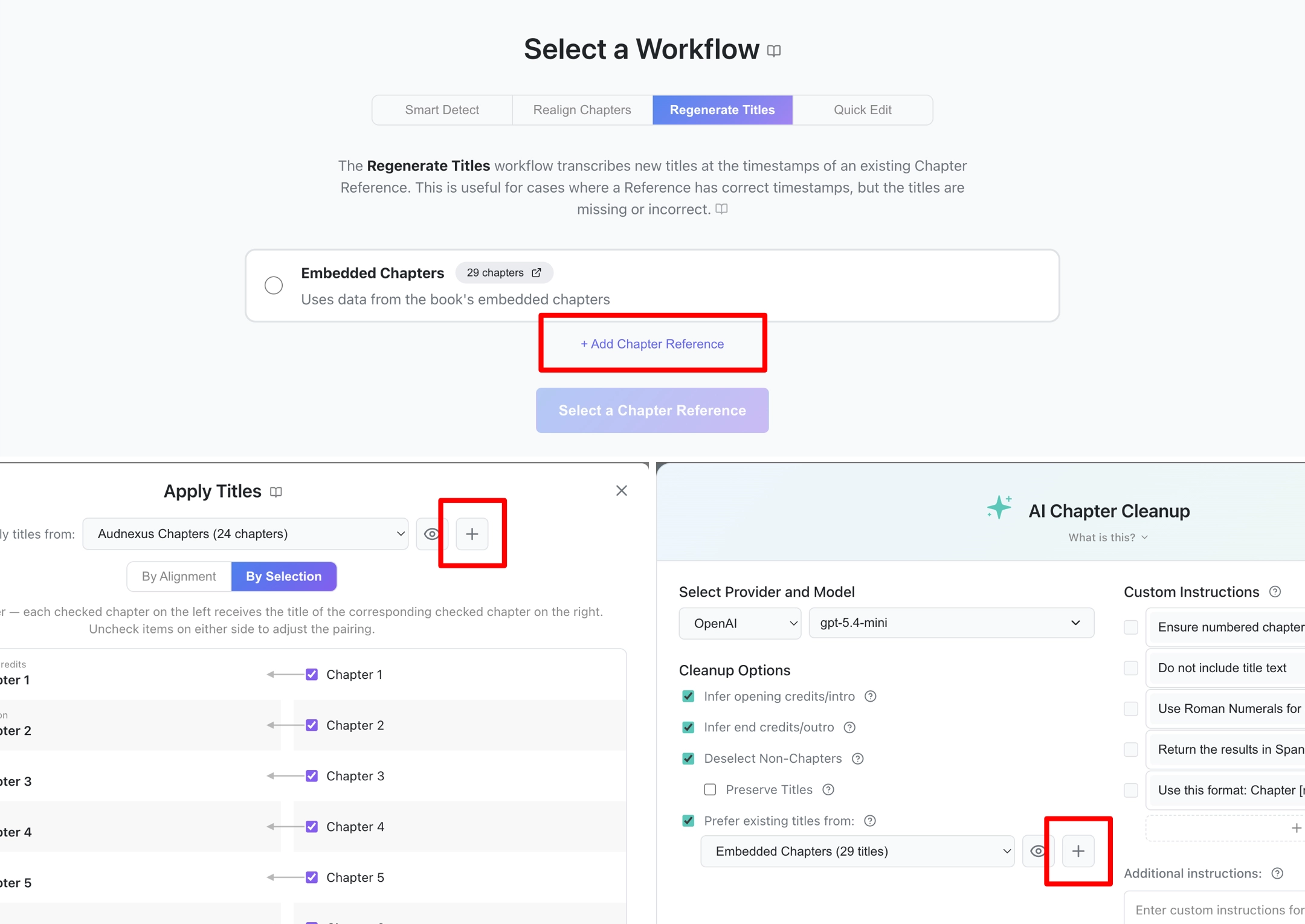
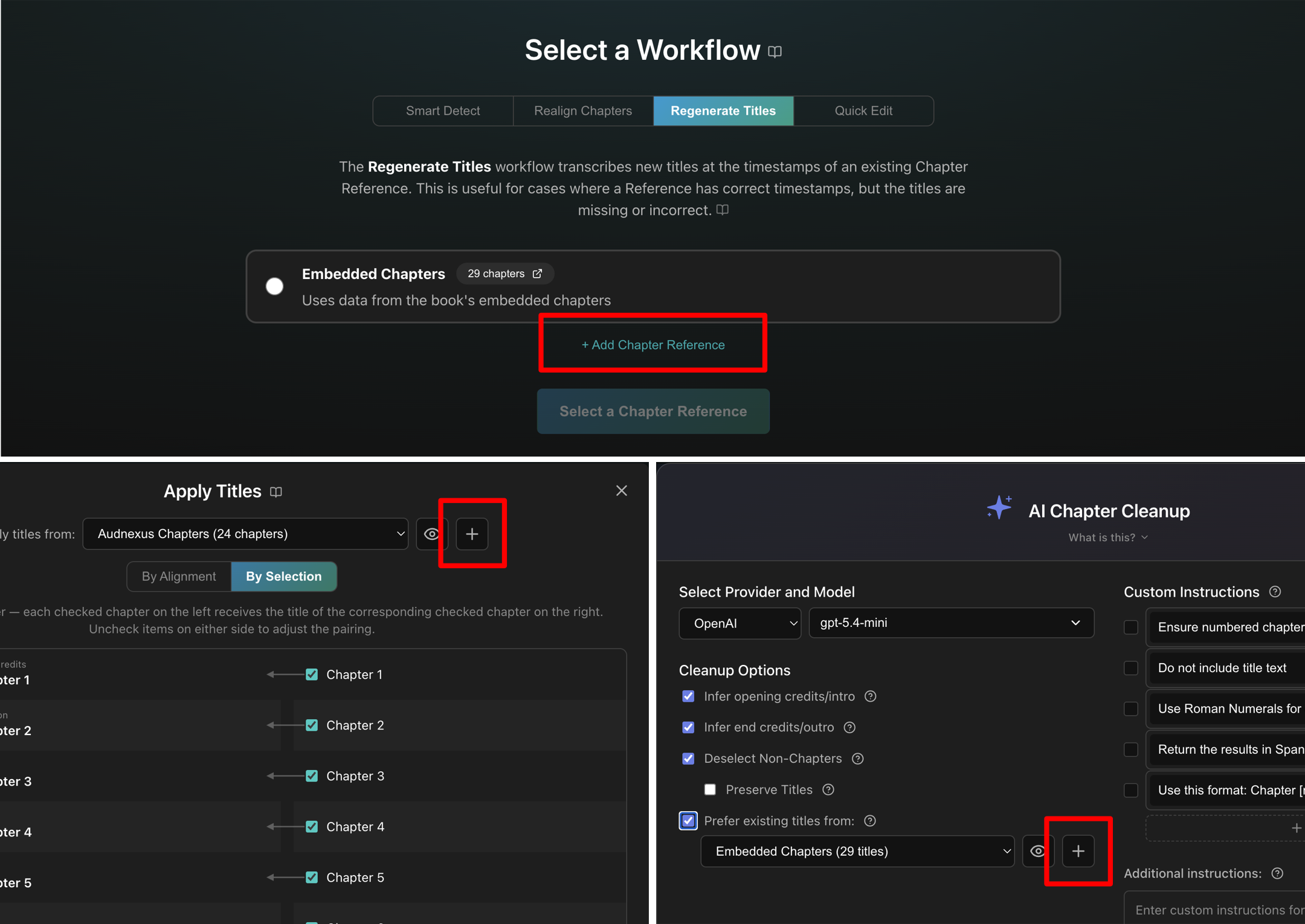
Two tabs are available: Upload File and Audnexus Search.
Upload File
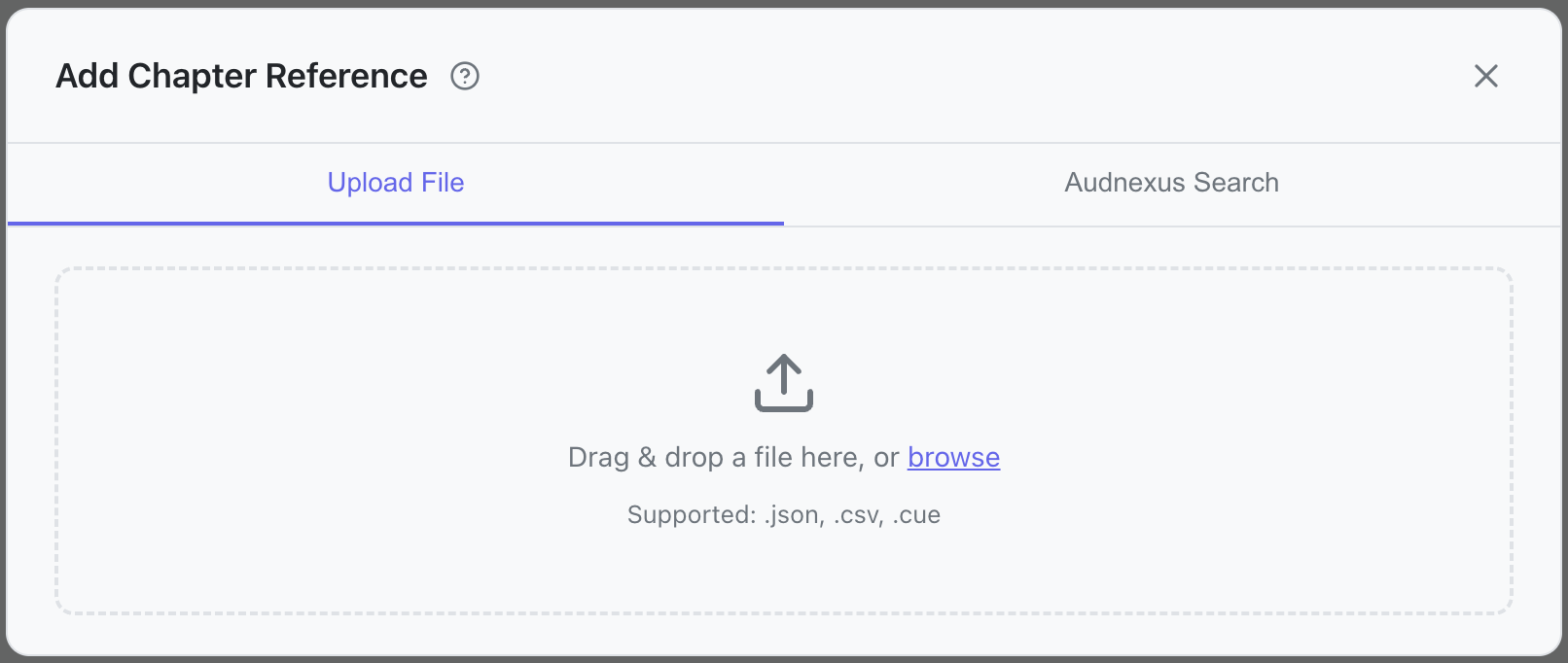
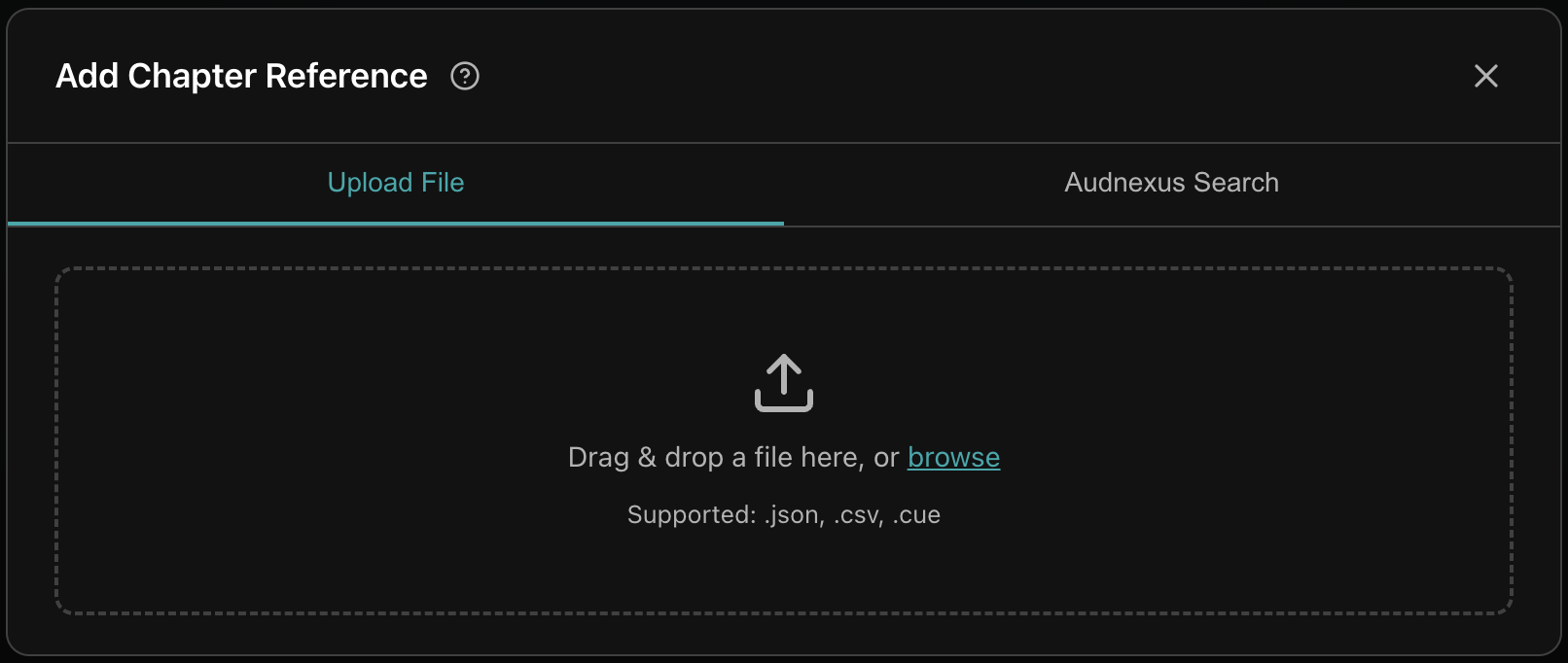
In the Upload File tab, drop a file into the upload zone or click browse to pick one.
Supported Formats:
| Format | Extension | Reference type |
|---|---|---|
| JSON file | .json |
Chapter Reference |
| CSV file | .csv |
Chapter Reference |
| Cue sheet | .cue |
Chapter Reference |
| Text file | .txt |
Title Reference |
| E-book file | .epub, .mobi, .azw, .azw3 |
Title Reference |
Tip
Although Title References (.txt or e-book files) cannot be used to start a workflow, you are allowed to upload them from the workflow selection screen; you'll be able to use them later when Applying Titles or running AI Cleanup.
Audnexus Search
What is Audnexus?
Audnexus is a service that provides aggregate metadata for audiobooks. This data is sourced primarily from the various Audible regions, and as such its chapter data is usually specific to books sourced directly from Audible. If your book was sourced from elsewhere, the titles from Audnexus might be helpful, but the timestamps will likely be incorrect.
In the Audnexus Search tab, you can search the Audnexus database by book title and/or author. Changing the provider allows you to change which Audible storefront region is searched.
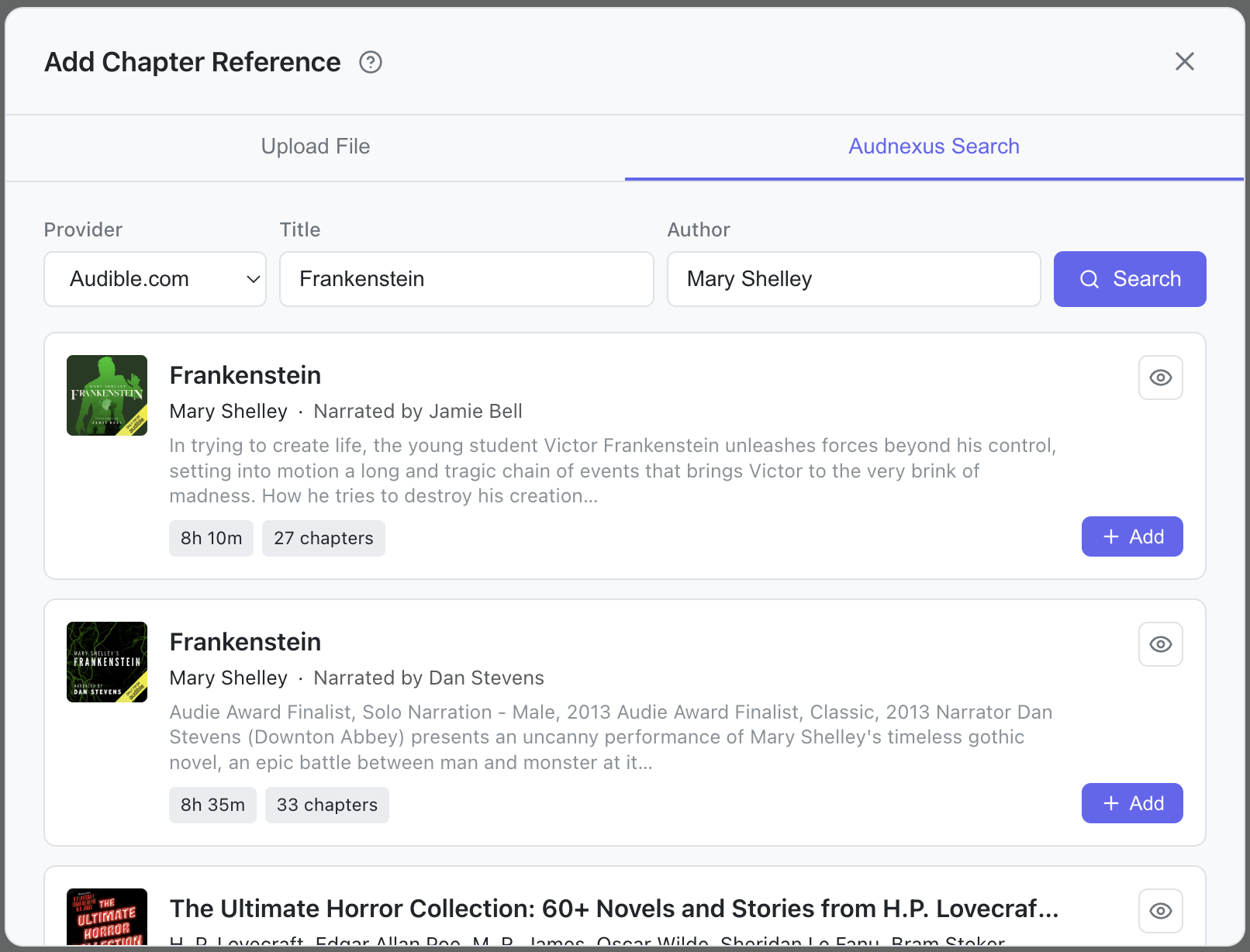
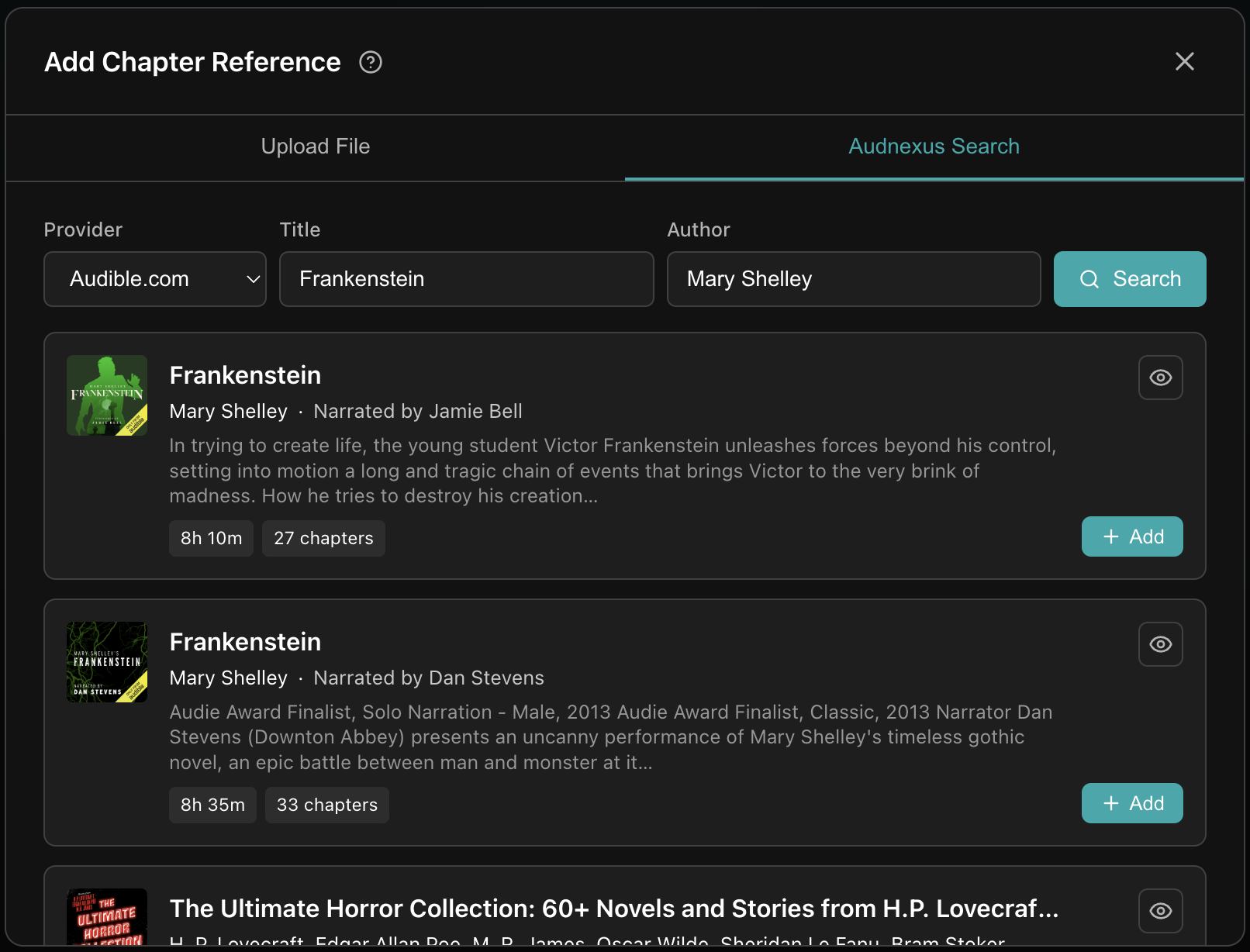
Each result displays relevant information that can help you decide on a good match. Use the Eye button in the top right of each result to preview its chapter list, and click the Add button to add it as a Chapter Reference.
Tip
If the book has an ASIN set in Audiobookshelf, Achew attempts to auto-add the Audnexus Reference at load time. Use this dialog to add new References using a different region, or to search by title when no ASIN is set.
-
Timestamps in JSON and CSV files can be in any of these formats:
H:MM:SSorH:MM:SS.ms, e.g.1:02:34or1:02:34.500M:SSorM:SS.ms, e.g.62:34or62:34.500- A plain number in seconds, e.g.
3754or3754.5 - A plain number in milliseconds, e.g.
3754000
-
"Library Files" refers to files stored alongside the audiobook, in the same directory. You can see them in the Library Files section of the book's detail page in Audiobookshelf.
Achew only sees files that Audiobookshelf knows about. If you've recently added a file to an existing book's folder and it isn't listed in the book's Library Files yet, trigger a library scan in Audiobookshelf, then load the book in Achew again. ↩↩↩↩↩