Apply Titles from Reference
Using the Apply Titles dialog, you can take titles from a Reference and apply them to the chapters in the editor. To access the dialog, open the Action Bar Menu and click Apply titles from…
Picking a reference
The dropdown at the top of the dialog lists all loaded References and their chapter/title counts. Chapter References are listed first, followed by Title References.


Two buttons sit next to the dropdown:
- Preview: Preview the chapters/titles of the selected Reference. For the Custom Titles Reference it switches to an Edit button that allows you to edit the title list.
- Add Reference: Opens the Add Chapter Reference dialog so you can upload new References or search Audnexus. New References are automatically selected when added.
Modes
When a Chapter Reference is selected, a mode toggle appears with two choices: By Alignment and By Selection. Title References have no timestamps and thus cannot be used with the By Alignment mode.
By Alignment
Automatically matches chapters based on timestamp alignment.
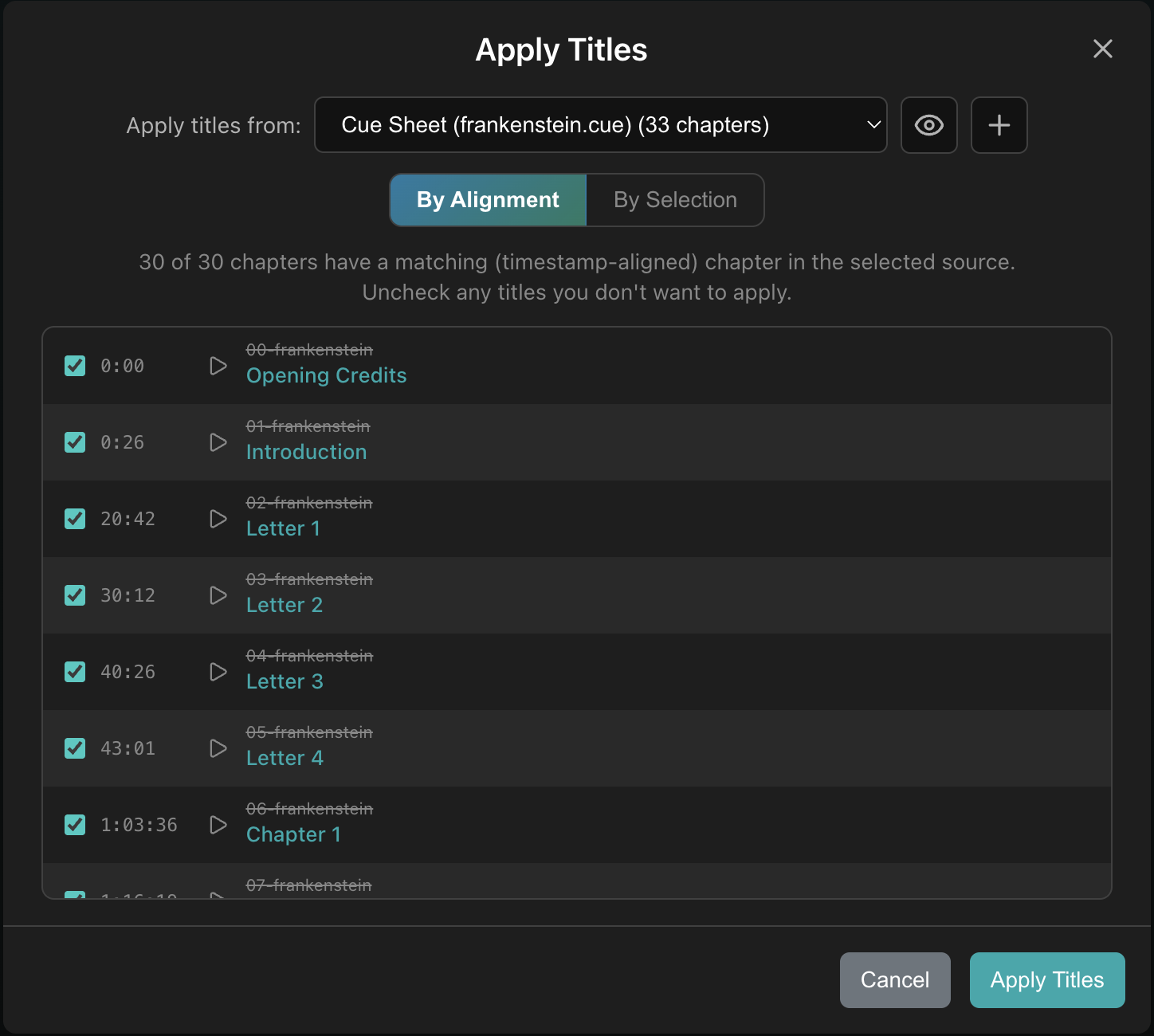
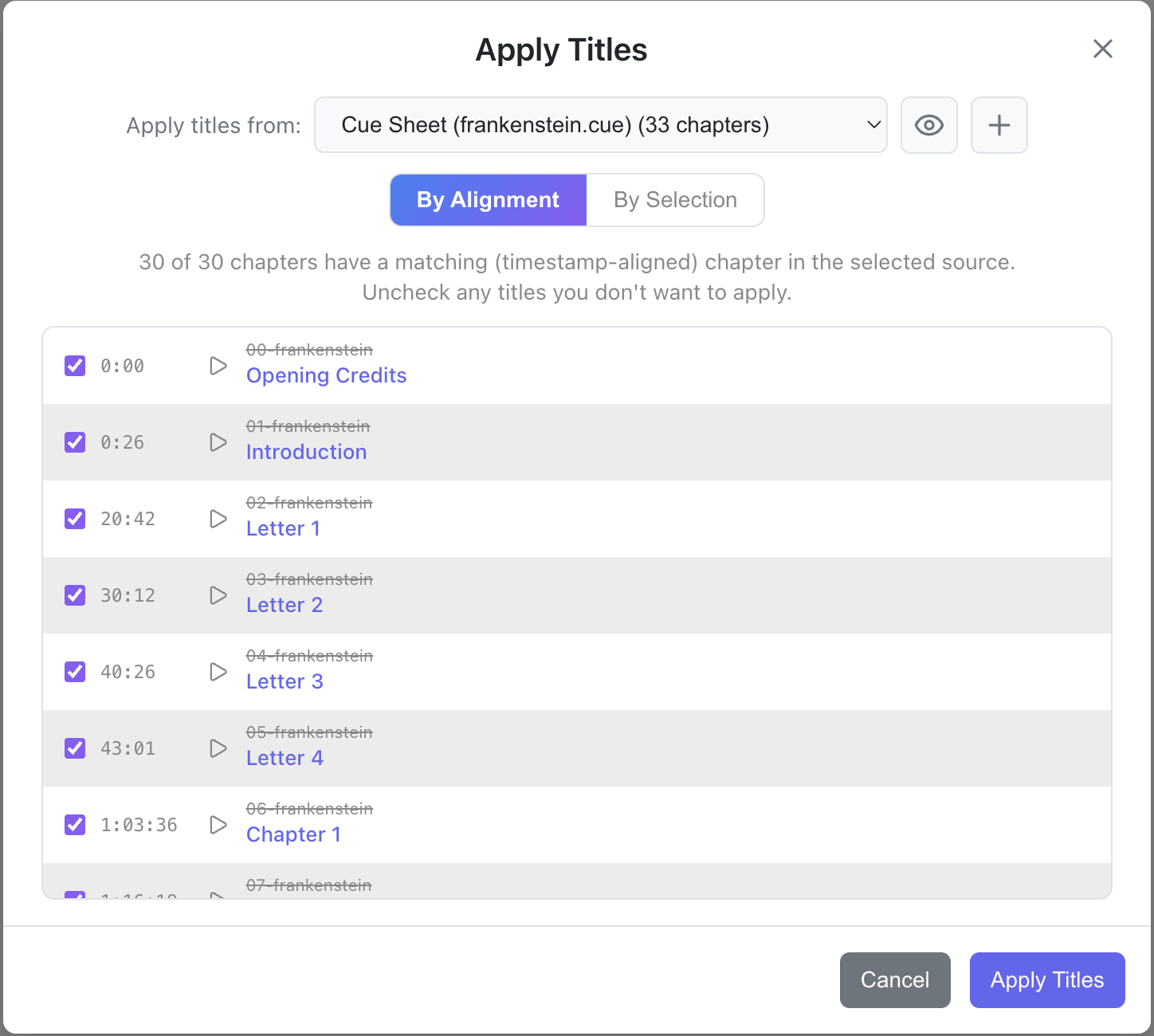
Aligned chapters show the new title (from the Reference chapter) alongside the original title. You can deselect the chapters you don't want to affect. Chapters with no match are greyed out and cannot be selected. Use the play button to preview audio and confirm accuracy.
By Selection
This mode pairs chapters to Reference titles based on position. The first selected chapter on the left receives the first selected title on the right, the second selected chapter receives the second selected title, and so on.
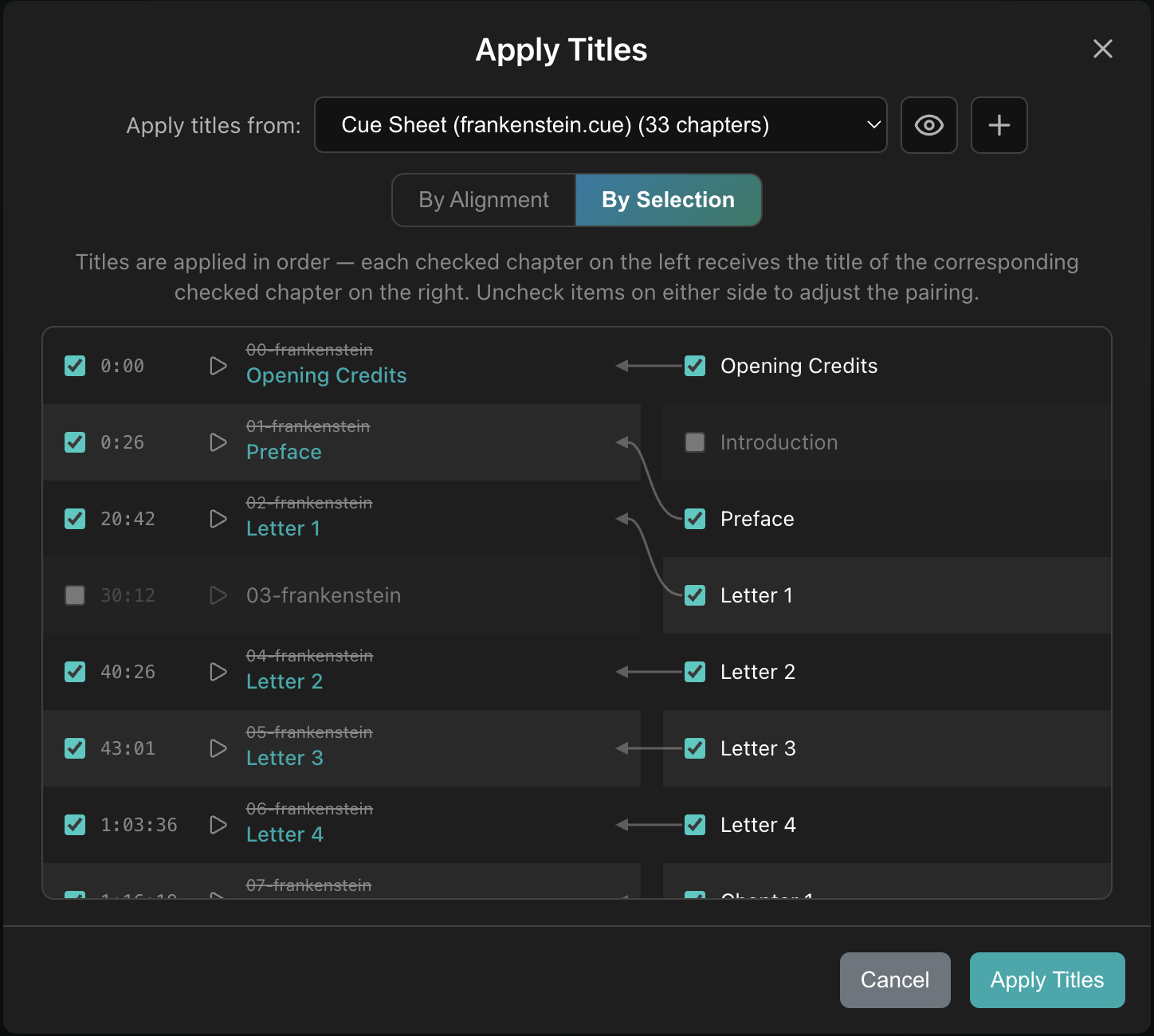
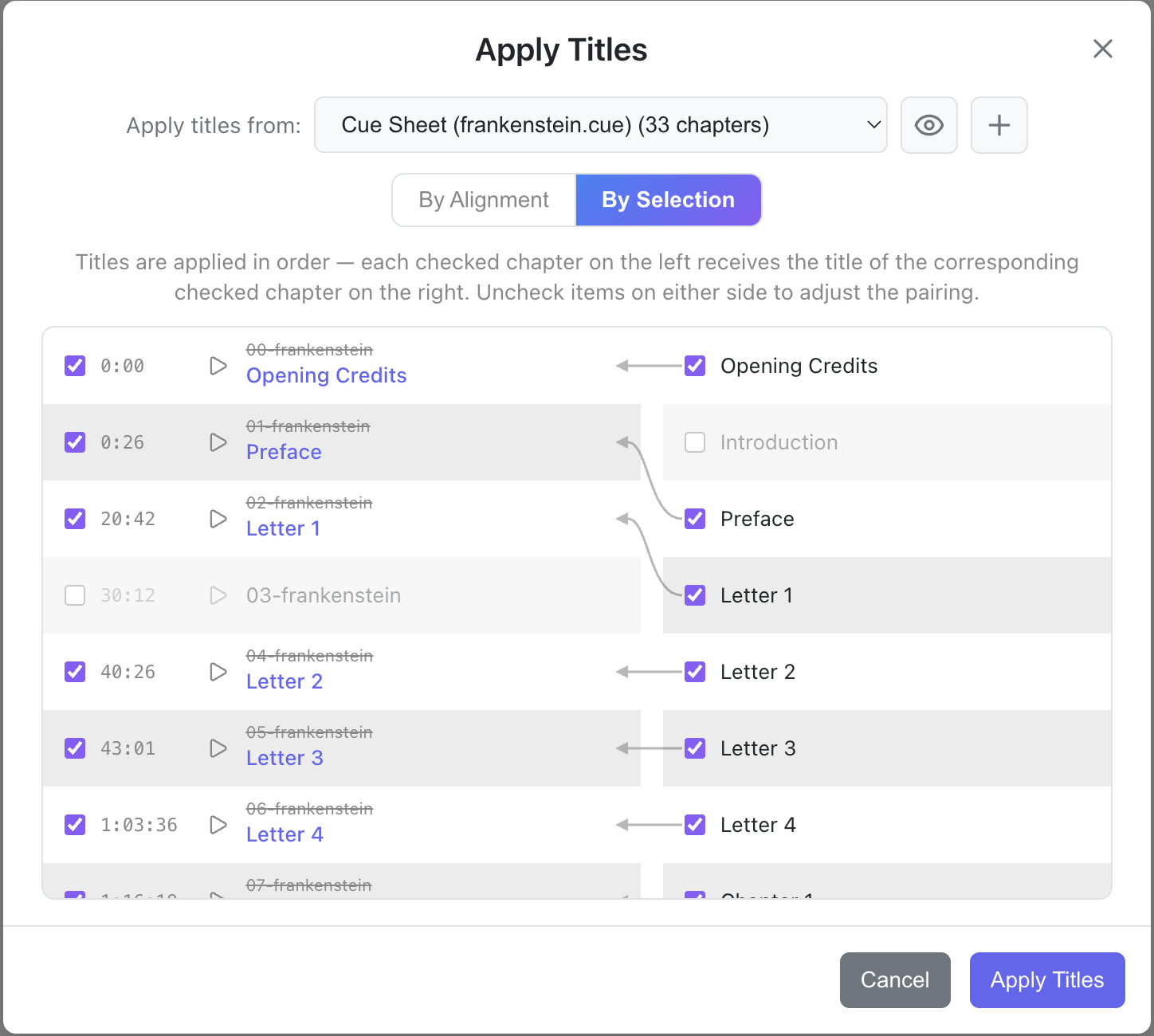
The two columns scroll in sync, and curved connectors visually link the pairs as you scroll. Uncheck chapters on the left or titles on the right to skip them and shift the remaining pairs. Use the play button to preview audio and confirm accuracy.