Adding Chapters
In the editor, use the button between rows to insert a new chapter.


This opens the Add Chapter Dialog which has several options for adding new chapters, depending on what data and which References are available. Only candidates that fall between the surrounding chapters are shown; this time range is displayed in the bottom left corner of the dialog.
Chapter Options
Timestamp
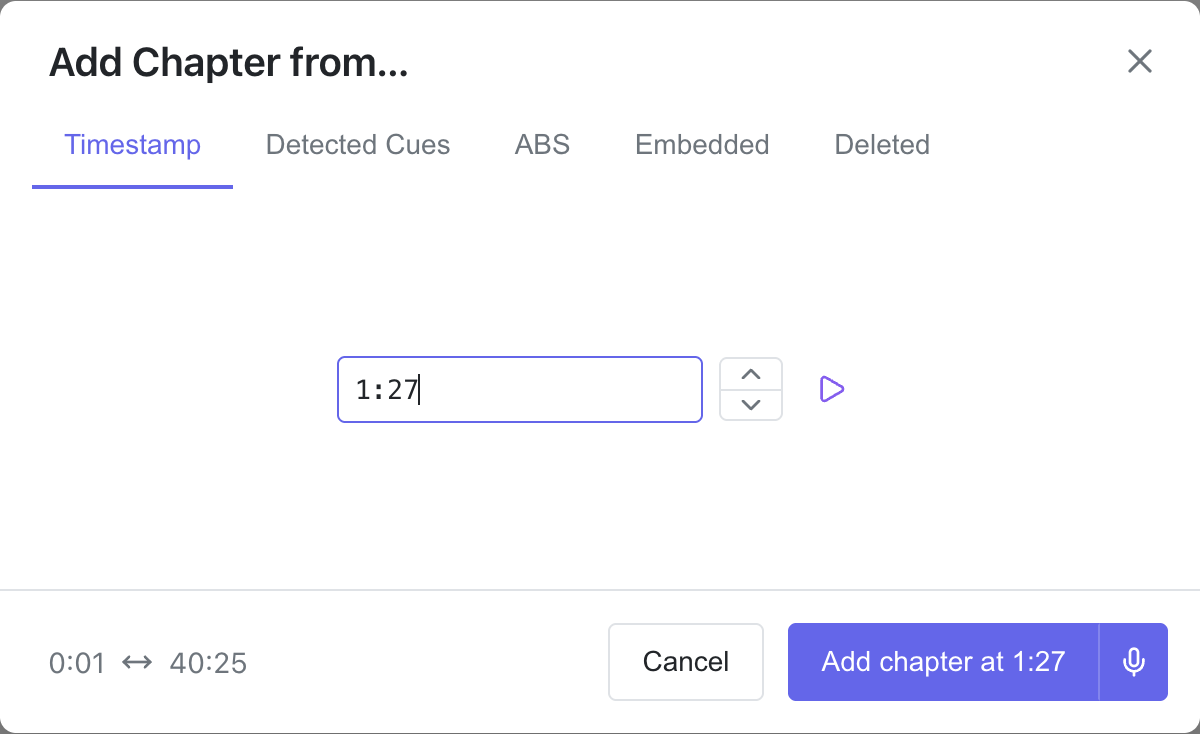
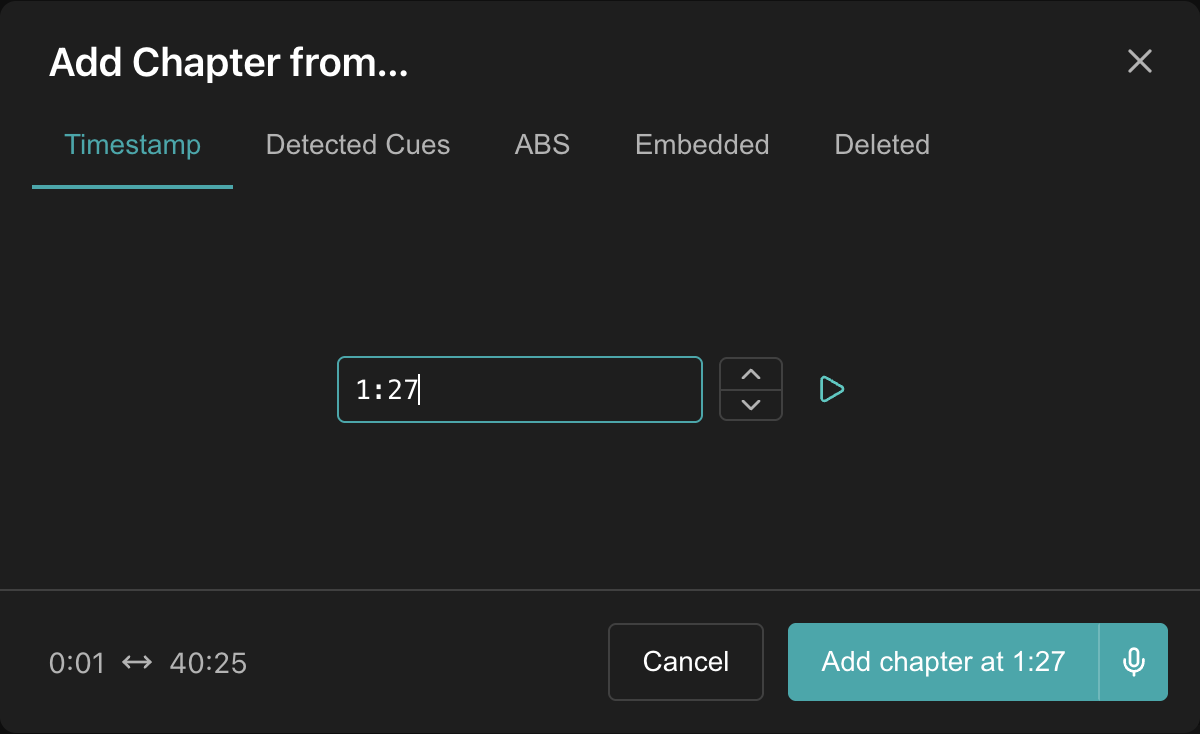
Manually specify a timestamp. Use ↑/↓ to nudge by ±1 second, and Space to preview.
Detected Cues
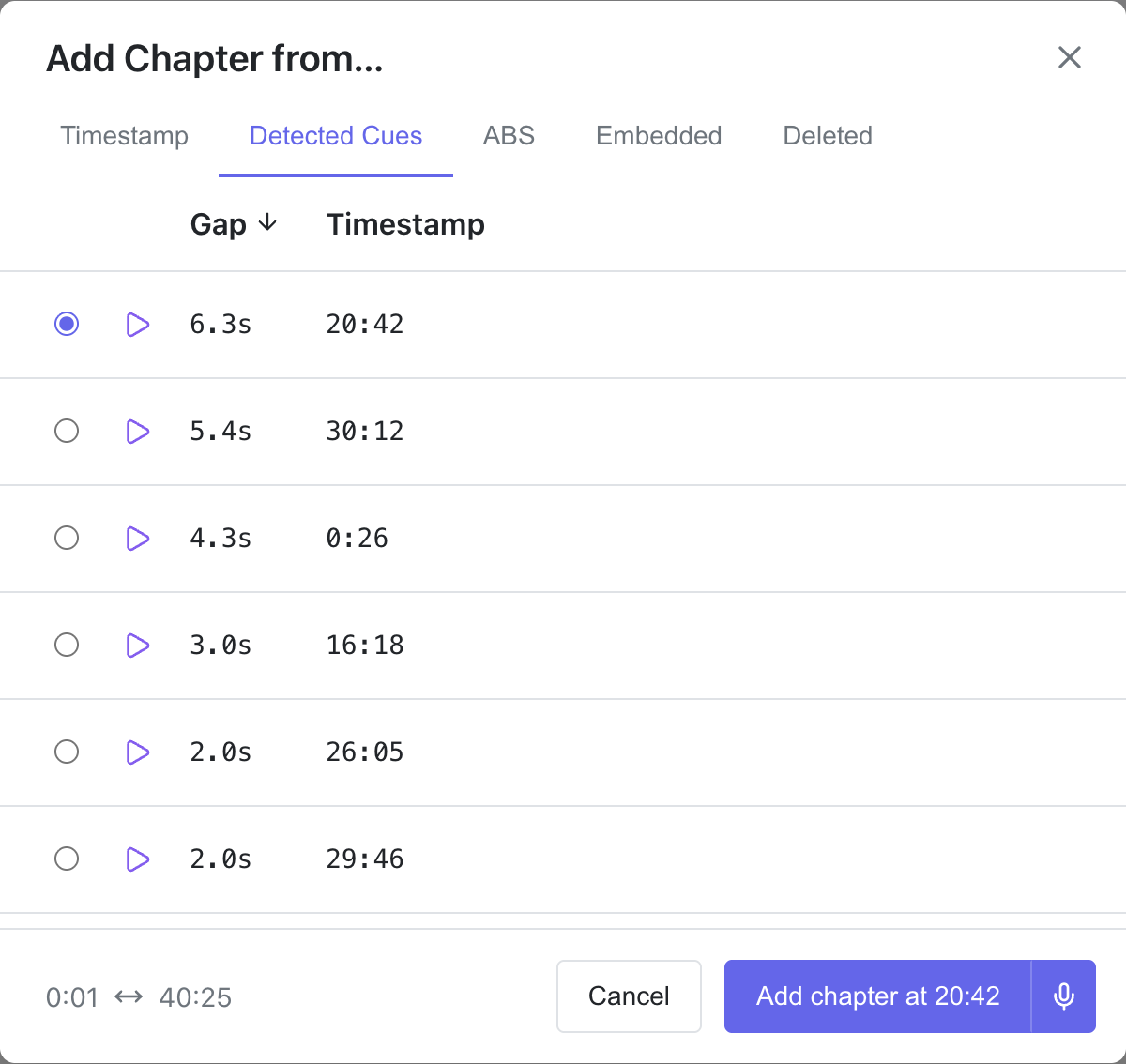
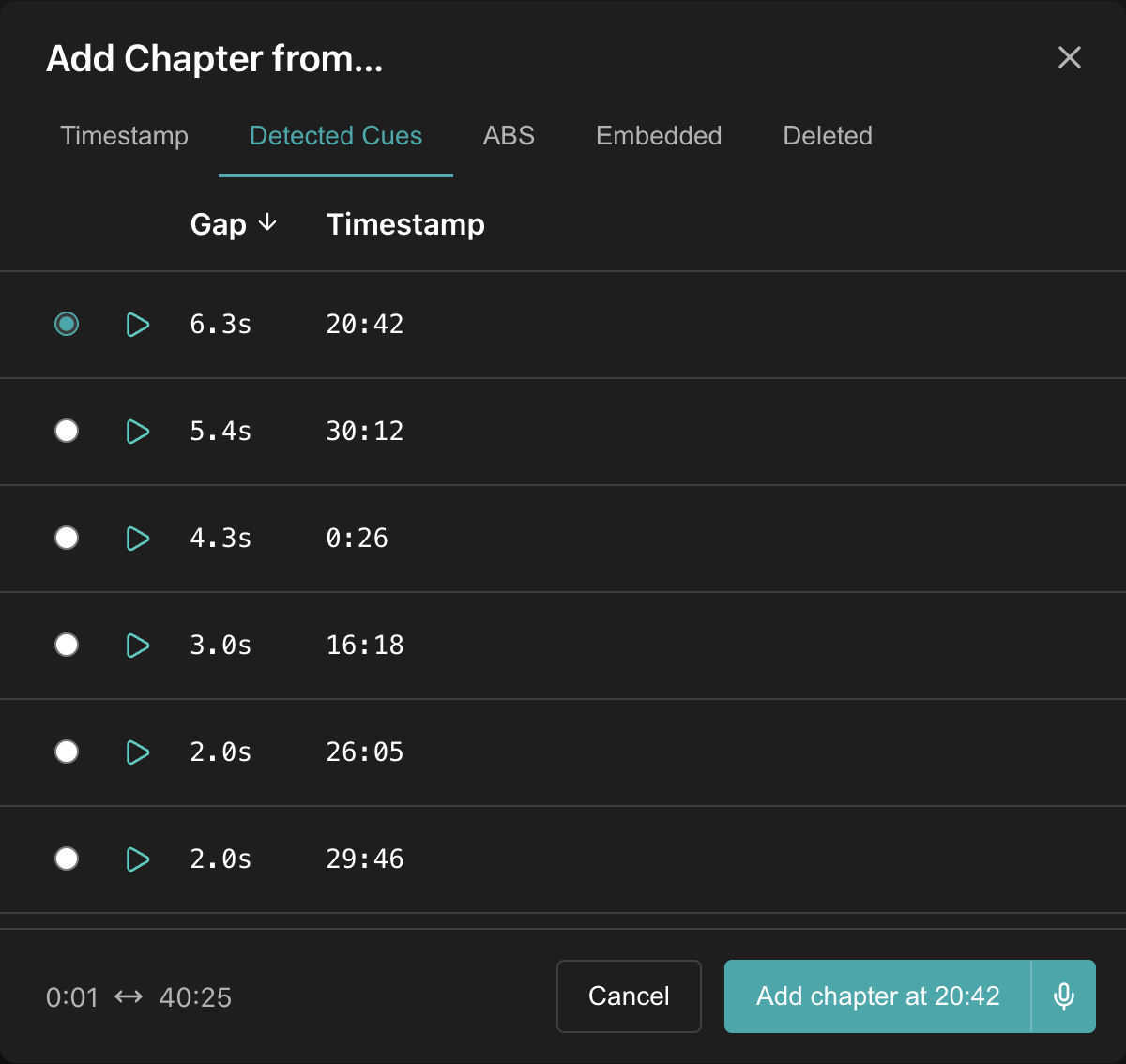
Choose from cues that have been detected in the available time range. Click to preview.
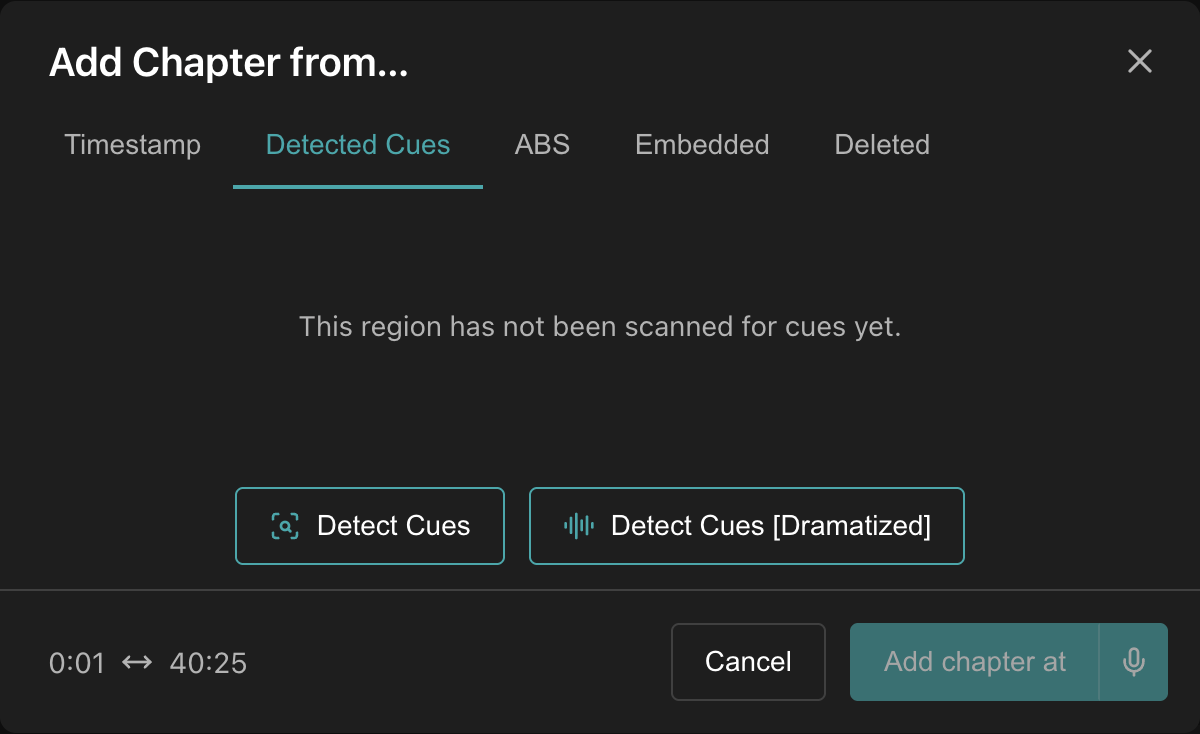
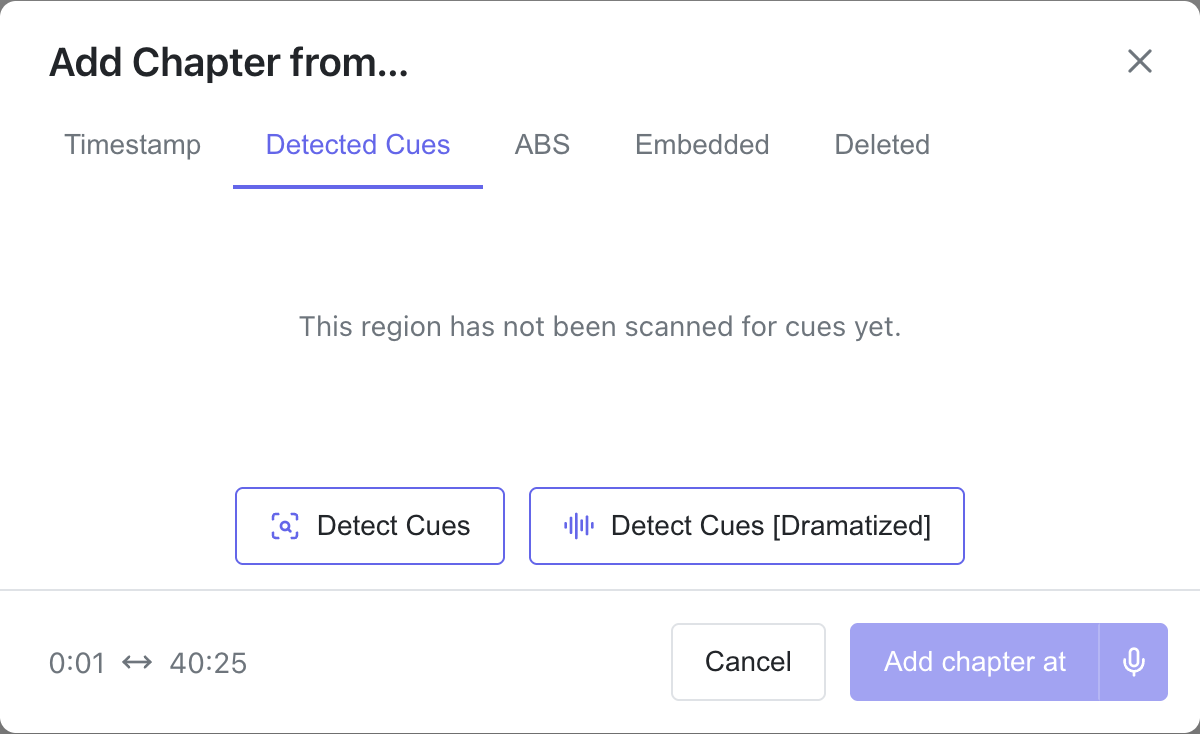
If the region has not been fully scanned for cues yet, you can click on the Detect Cues button or the Detect Cues [Dramatized] button to initiate a partial scan.
Chapter References
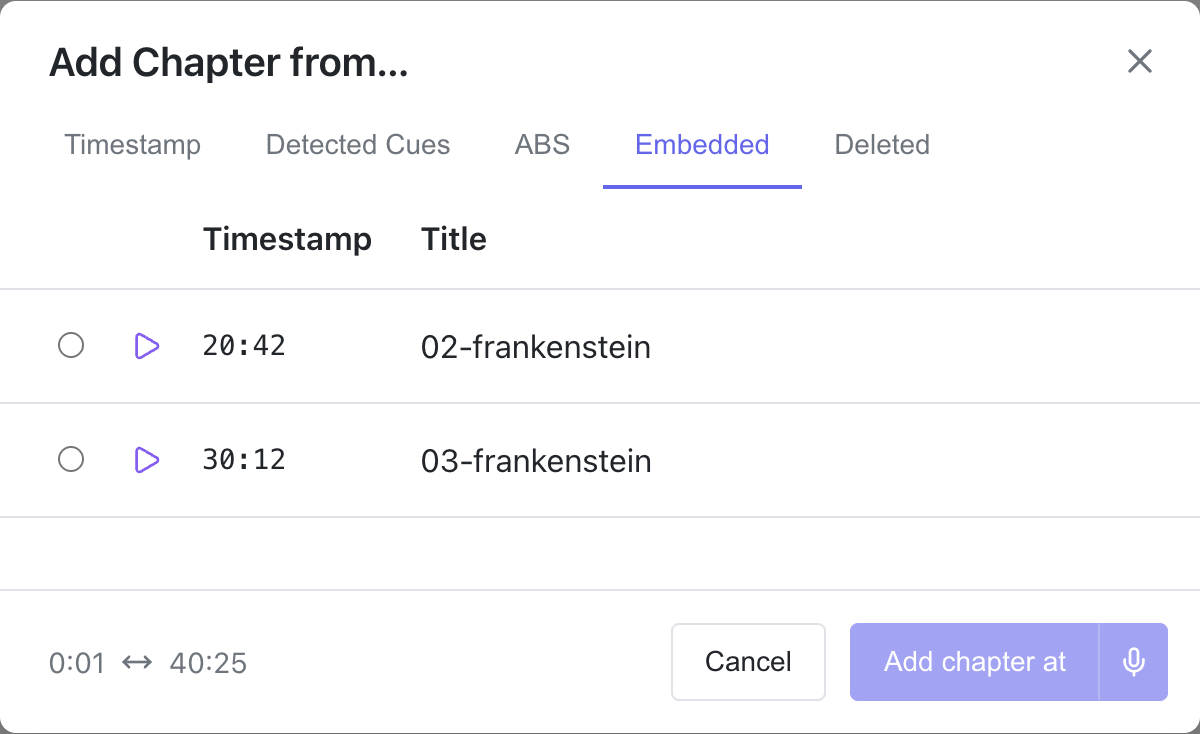
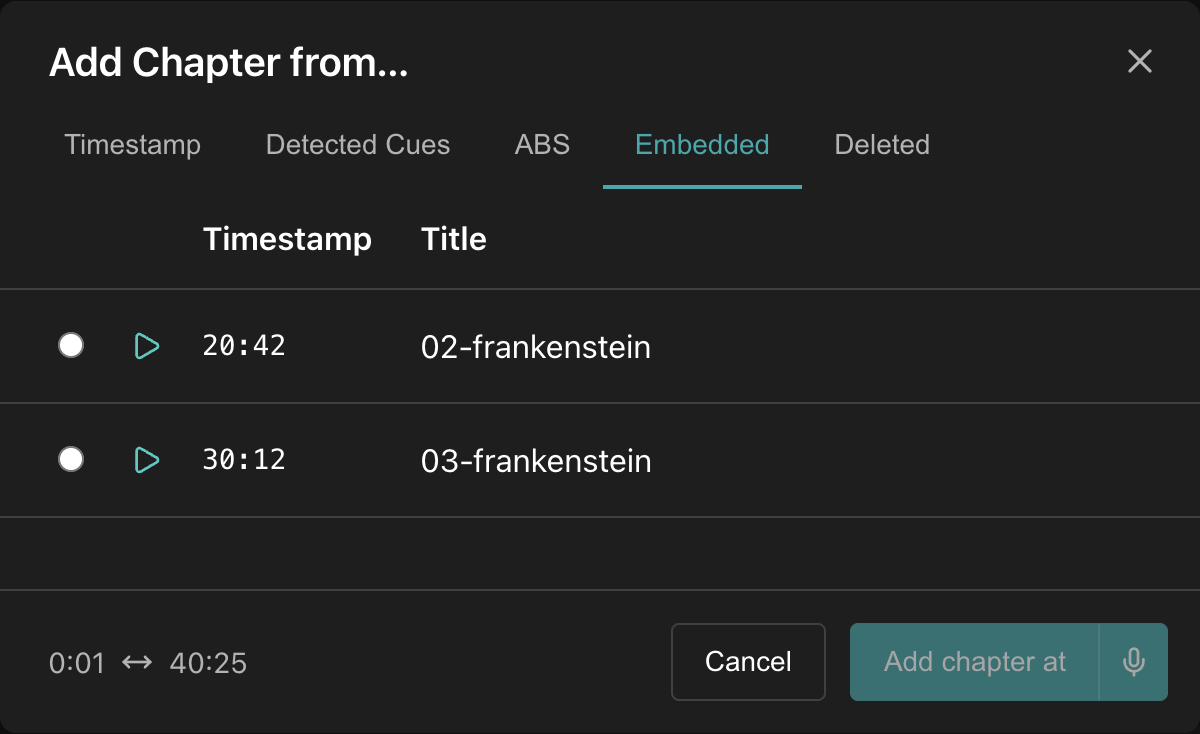
One tab per Chapter Reference. Click to preview.
Deleted
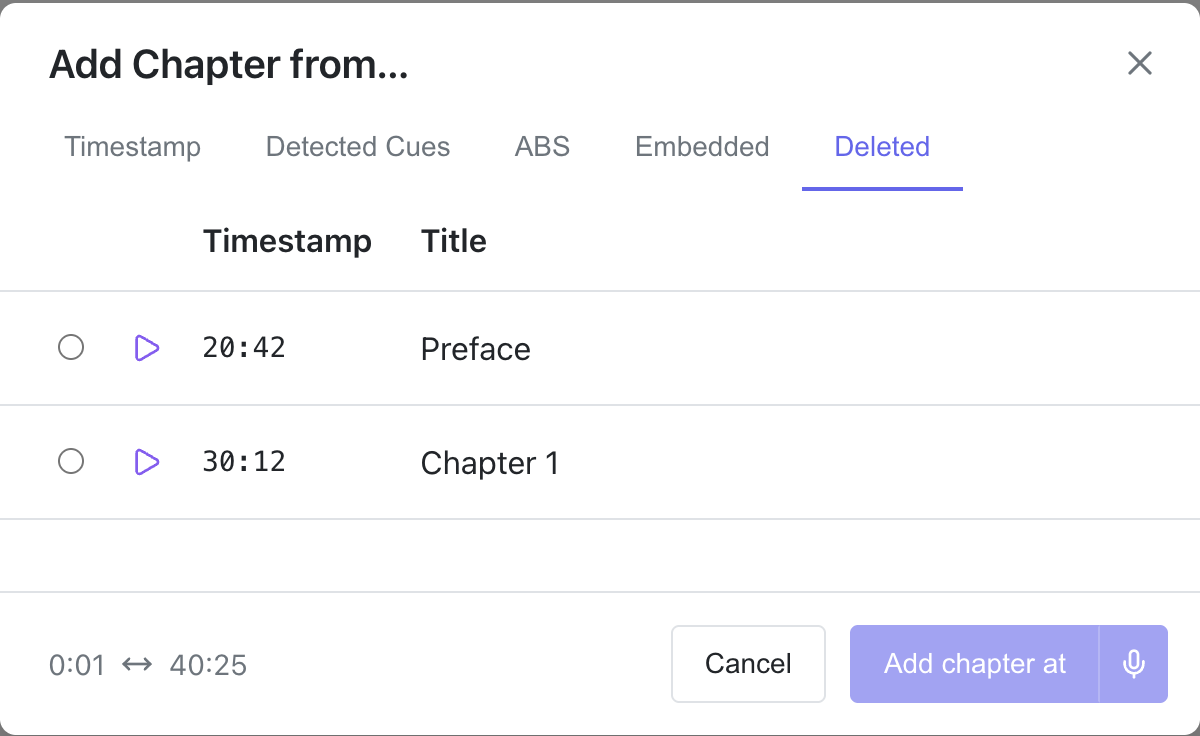
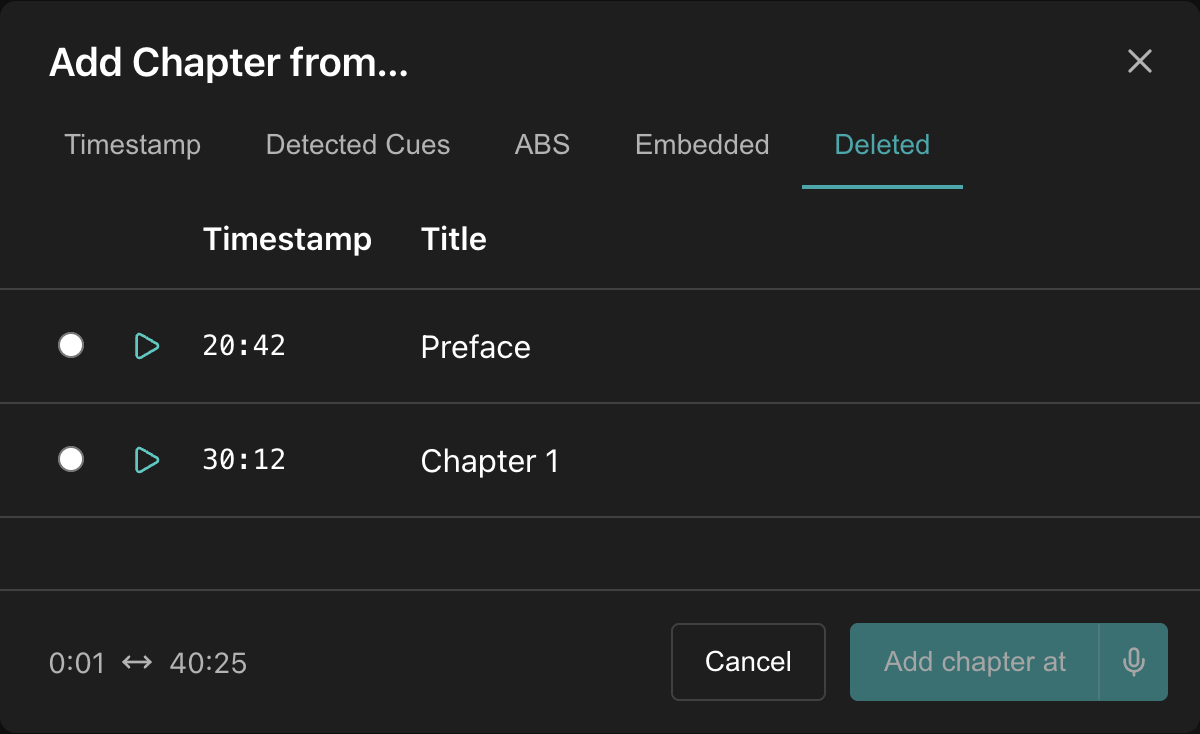
Shows all previously-deleted chapters in the time range. Click to preview.
Add and Transcribe
When a chapter is selected (or a valid timestamp is entered), clicking the Add chapter at button will add the new chapter to the editor.
If you instead click the transcribe icon in that button, the new chapter will be added and then immediately transcribed using the current transcription settings.