LLM Providers
Achew supports several LLM providers for AI Cleanup. You can configure as many as you like, but only one can be used per cleanup run. All provider settings live in Settings → LLM Setup.
Free options
If you don't have any paid accounts, three providers work well at no cost:
- Google Gemini, free tier: (Recommended) Easiest to set up. Requires a Google account. Rate-limited, but generally fine for casual use.
- GitHub Copilot Free: Requires a GitHub account. Usage is limited by a monthly allowance of GitHub AI credits on the free tier.
- Ollama or LM Studio: Free, unlimited, and private, at the cost of running the model yourself. 16B+ parameter models recommended; smaller ones often produce unusable results.
See the relevant provider card below for setup steps.
Provider summary
| Provider | Cost | Field(s) | Notes |
|---|---|---|---|
| OpenAI | Paid | API key | Prefer mini models for general use, nano models for simple tasks, and regular models for complex cleanup. The pro models are slow, expensive, and generally overkill. |
| Anthropic Claude | Paid | API key | Prefer Sonnet models for general use, Haiku models for simple tasks and light cleanup, and Opus only for very complex cleanup. |
| Google Gemini | Free/Paid | API key | Free tier has limited model selection and rate limits. Prefer Flash models for most tasks, Lite models for simple cleanup, and Pro models for complex cleanup. |
| OpenRouter | Free/Paid | API key | Free tier has limited model selection, a limit of 50 requests/day, and spotty service. Small models do not work well; try to use 16B+ parameter models. |
| GitHub Copilot | Free/Paid | Personal access token | Free tier has limited model selection and a limited monthly allowance of GitHub AI credits, consumed based on token usage. |
| Ollama | Free (self-hosted) | Server URL | Local, private, unlimited. Small models do not work well; try to use 16B+ parameter models. |
| LM Studio | Free (self-hosted) | Server URL + optional API token | Local, private, unlimited. Small models do not work well; try to use 16B+ parameter models. |
| OpenAI-Compatible | Varies | Base URL + optional API key | Connect to any OpenAI-compatible endpoint (e.g. LiteLLM, vLLM). Available models and cost depend on the endpoint you point it at. |
Provider Setup Instructions
OpenAI
To create a key, go to https://platform.openai.com/api-keys. At the bottom, click Create new secret key.
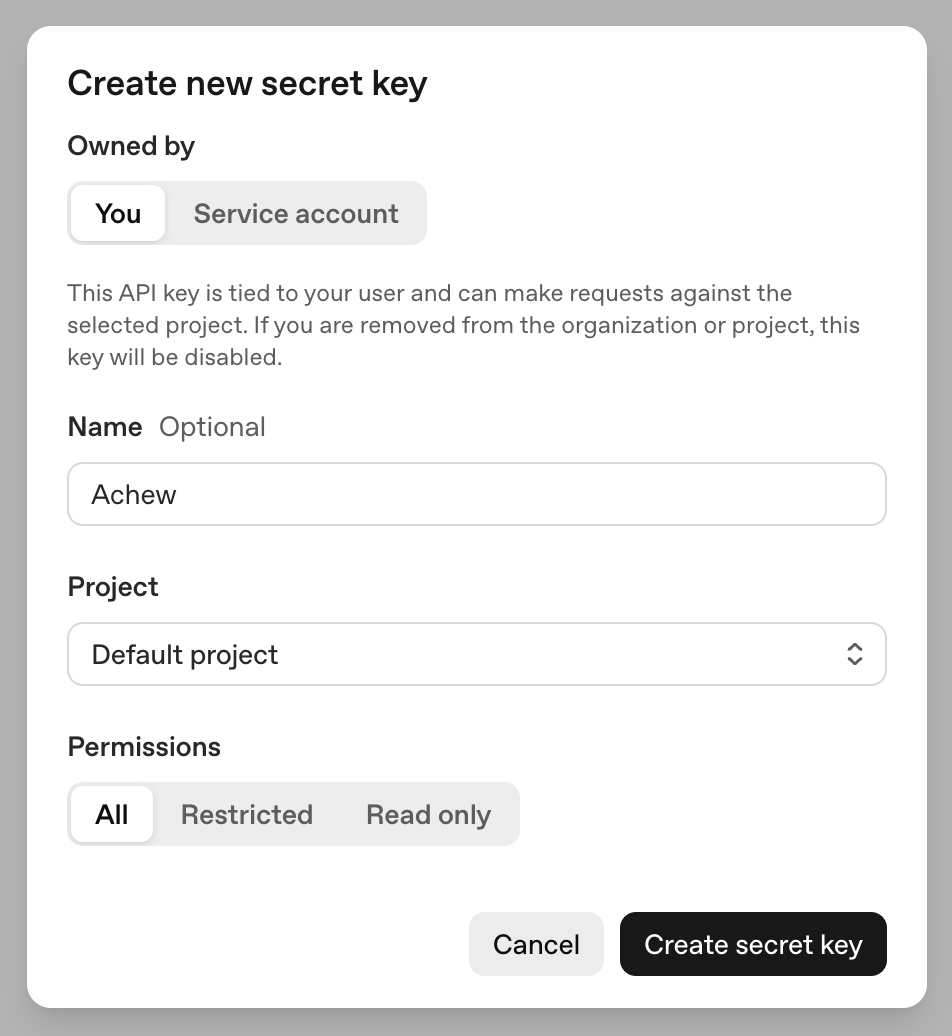
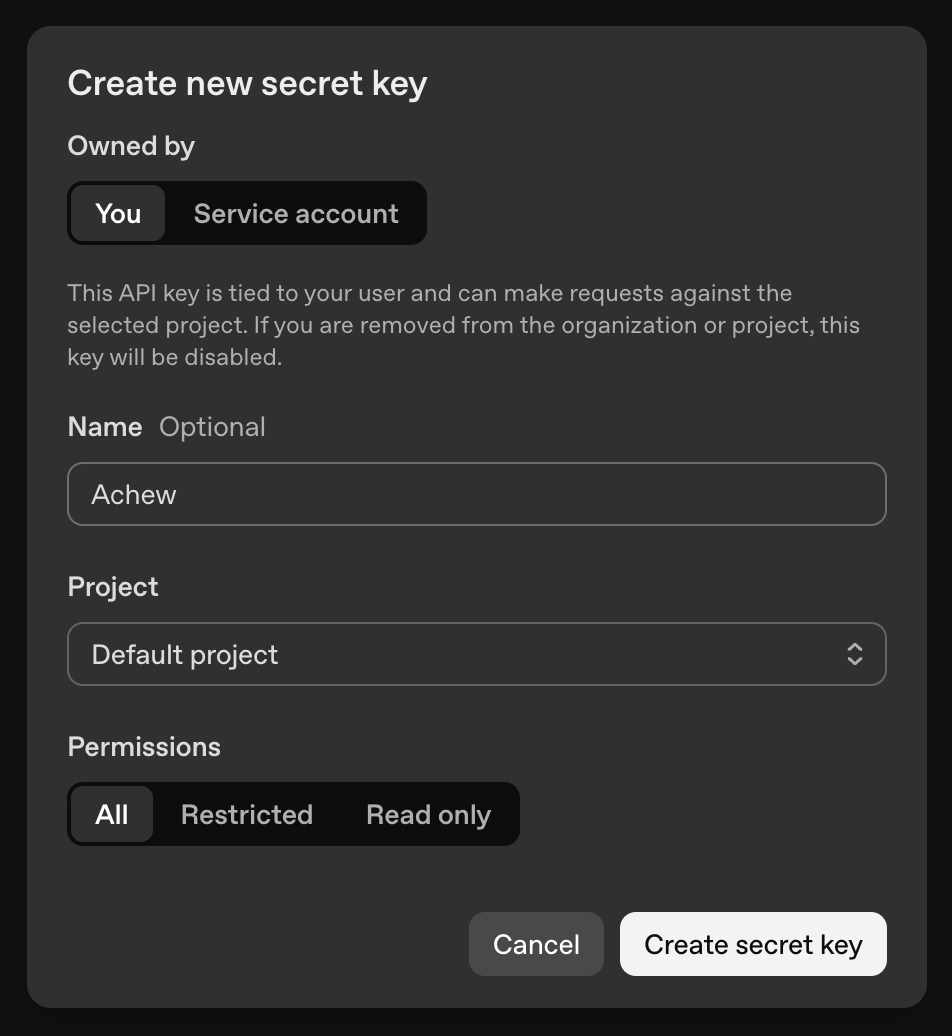
In the dialog, type a name for the key (e.g. "Achew"), set permissions to All, then click Create Secret Key. After a moment it will show you the newly-created key. Make sure to copy the key at this point, as you won't be able to view it again.
In Achew, go to Settings -> LLM Setup and enable the OpenAI card. Paste the API Key into the input field, then click Validate. Once validated, you'll be able to use OpenAI as a provider for AI Cleanup in the chapter editor.
Claude (Anthropic)
To create a key, go to https://console.anthropic.com/settings/keys. In the top right, click Create key.
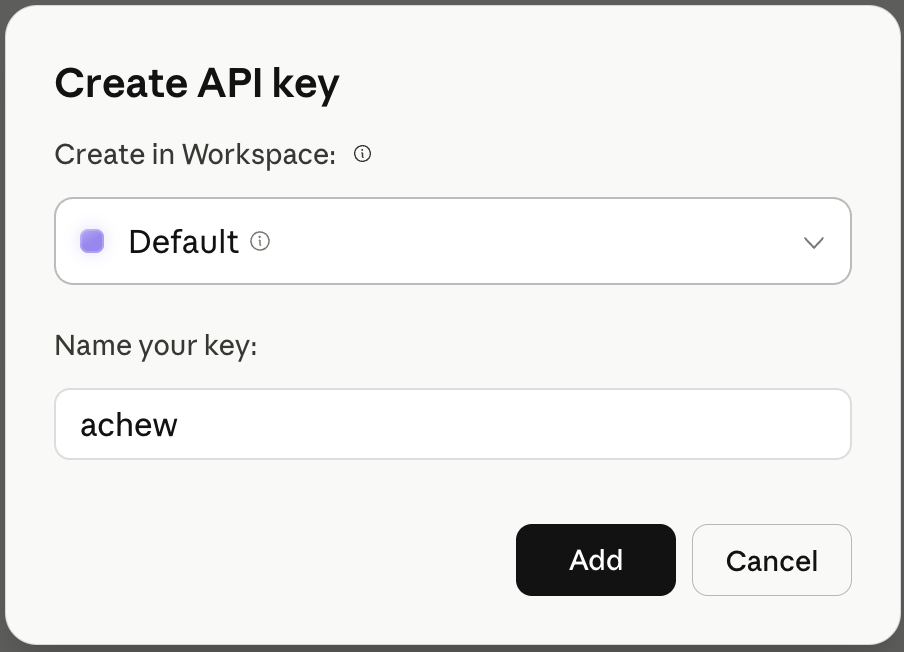
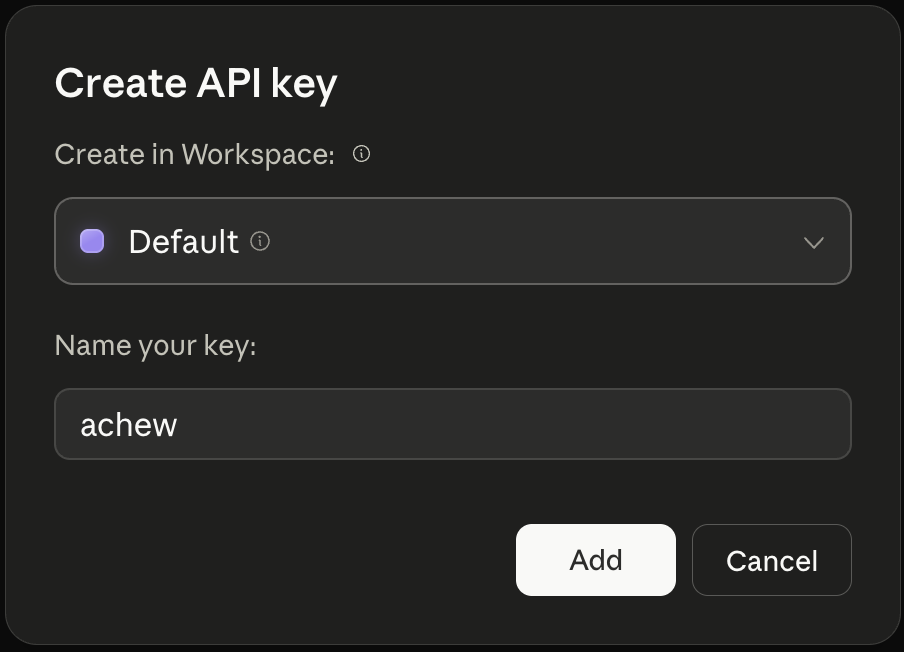
In the dialog, select a workspace (Default is fine), type a name for the key (e.g. "achew") and click Add. After a moment it will show you the newly-created key. Make sure to copy the key at this point, as you won't be able to view it again.
In Achew, go to Settings -> LLM Setup and enable the Claude card. Paste the API Key into the input field, then click Validate. Once validated, you'll be able to use Claude as a provider for AI Cleanup in the chapter editor.
Gemini (Google)
To create a key, go to https://aistudio.google.com/apikey. In the top right, click Create API key.
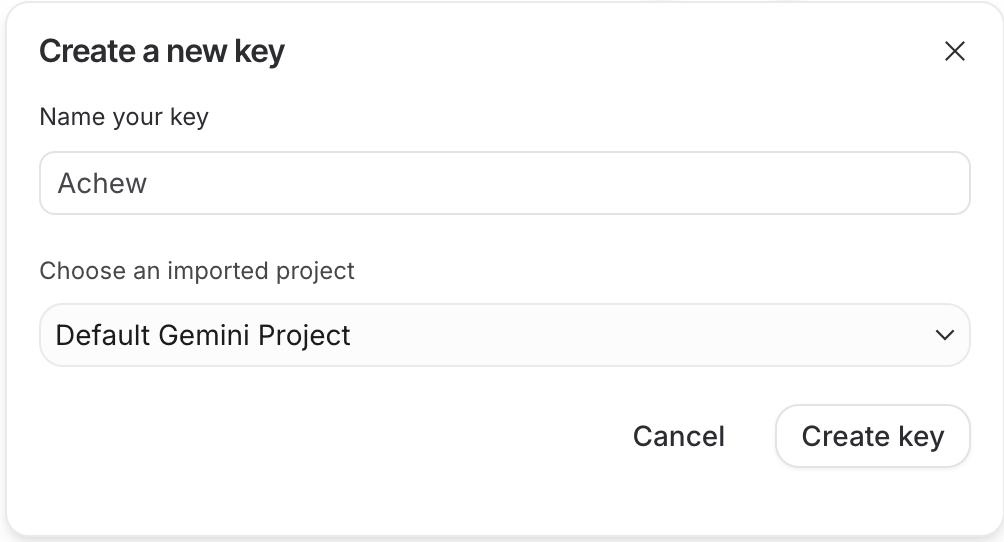
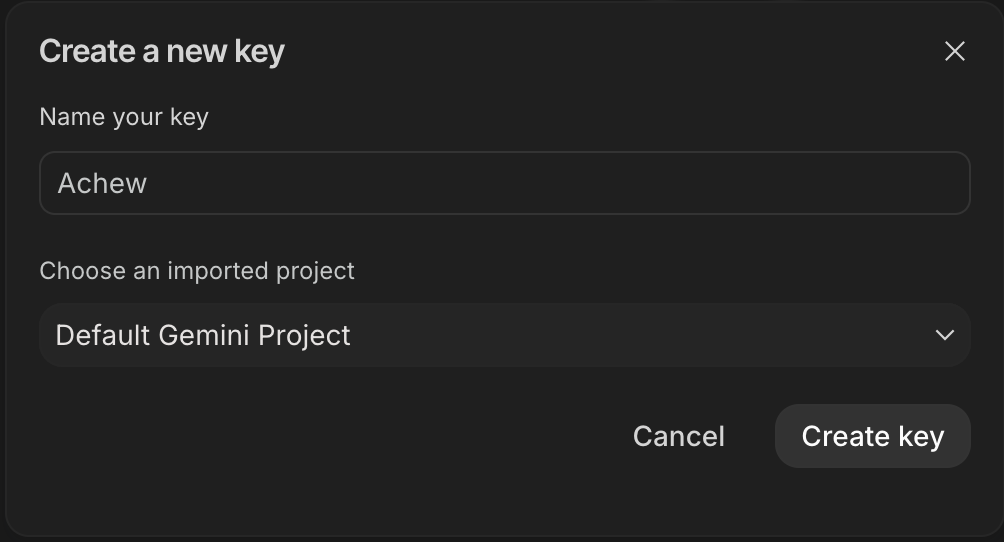
In the dialog, type a name for the key (e.g. "Achew"), select a project (Default Gemini Project is fine), then click Create key. After a moment the newly-created key will be displayed; copy it.
In Achew, go to Settings -> LLM Setup and enable the Gemini card. Paste the API Key into the input field, then click Validate. Once validated, you'll be able to use Gemini as a provider for AI Cleanup in the chapter editor.
OpenRouter
One OpenRouter key fronts dozens of underlying models; you pick the specific model at cleanup time. To create a key, go to https://openrouter.ai/keys and sign in. In the top right, click Create.
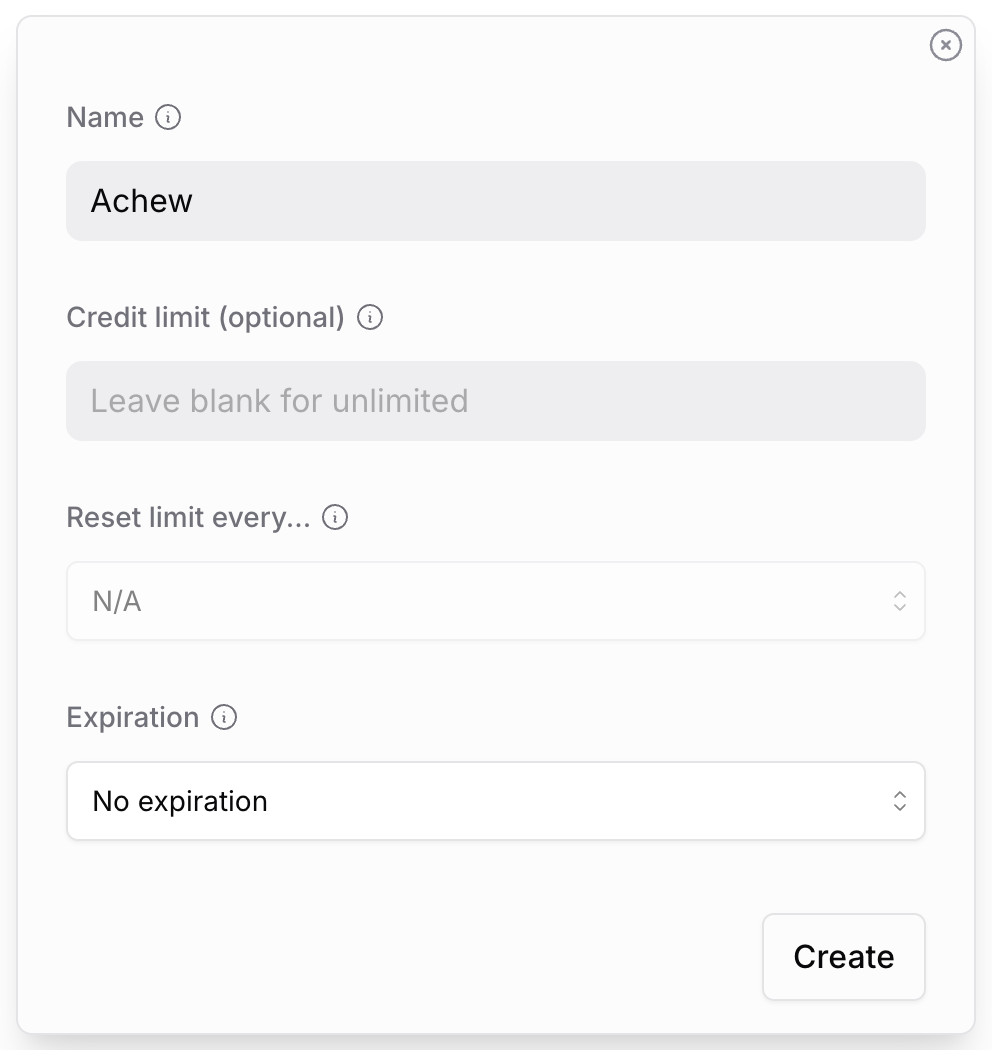
In the dialog, provide a name for the key (e.g. "Achew"), optionally set a credit limit and expiration, then click Create. After a moment the new key will be displayed. Make sure to copy the key at this point, as you won't be able to view it again.
In Achew, go to Settings -> LLM Setup and enable the OpenRouter card. Paste the API Key into the input field, then click Validate. Once validated, you can use OpenRouter as a provider for AI Cleanup in the chapter editor.
GitHub Copilot
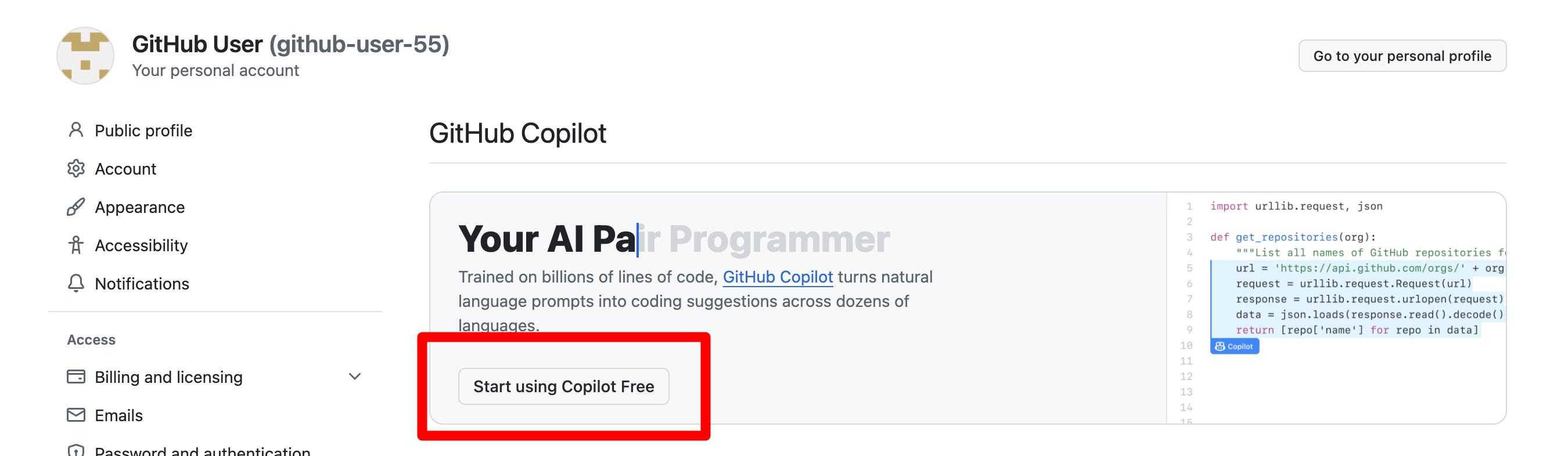
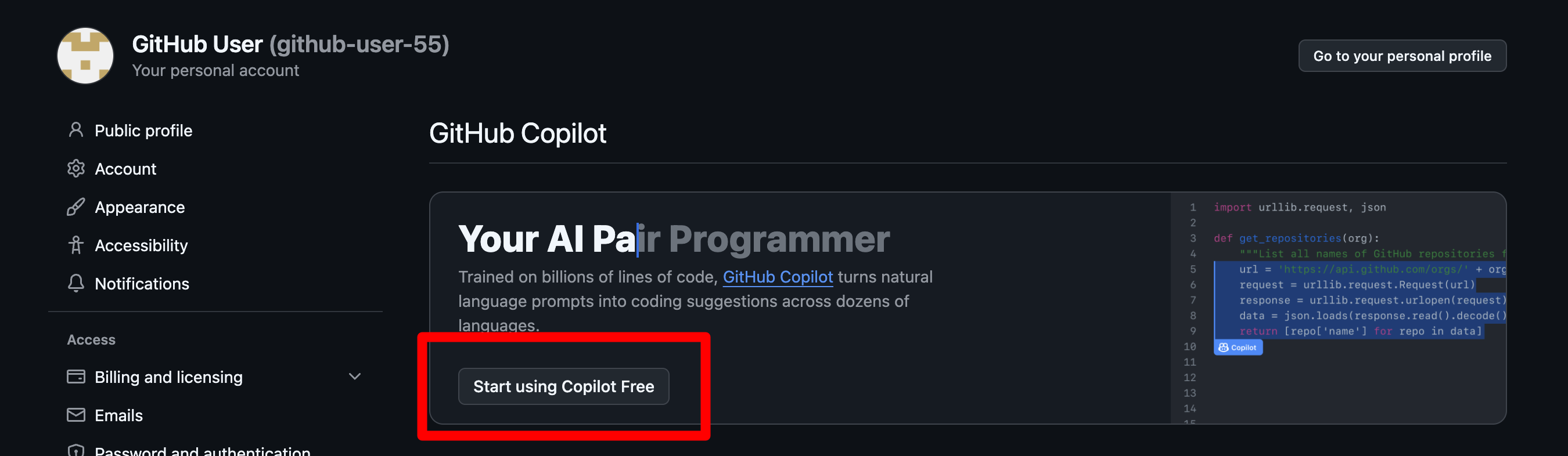
First, make sure Copilot is enabled on your GitHub account by visiting your Copilot settings. If you have not previously enabled Copilot, you can do so by clicking the Start Using Copilot Free button. If you don't see this button, Copilot is likely already enabled.
Next, go here to create a new fine-grained personal access token.
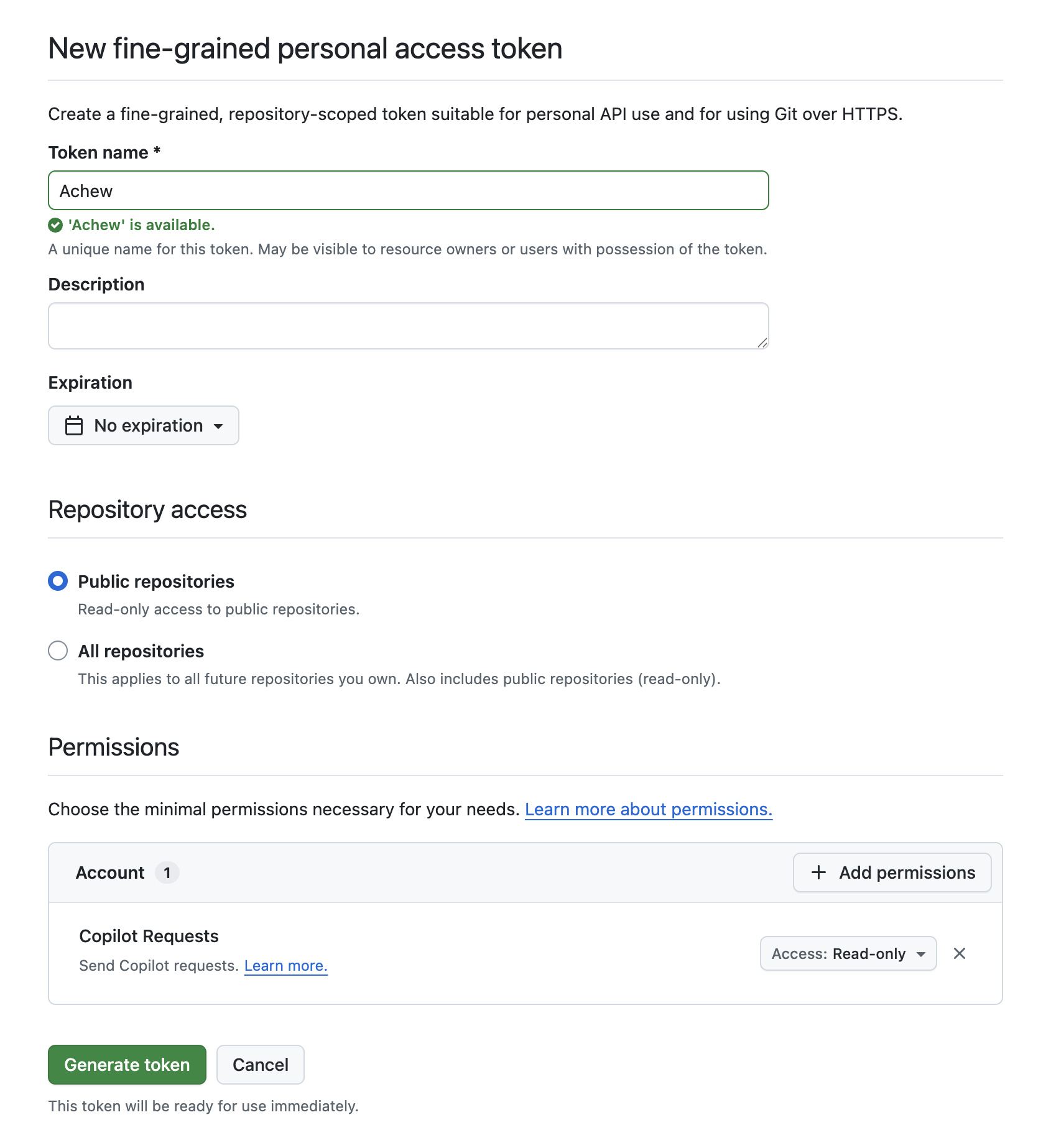
Give it a name (e.g. "Achew"), set an expiration, and add the Copilot Requests permission (Read-only). Click Generate token at the bottom, confirm, and then the token will be displayed. Make sure to copy the token at this point, as you won't be able to view it again.
In Achew, go to Settings -> LLM Setup and enable the GitHub Copilot card. Paste the Personal Access Token into the input field, then click Validate. Once validated, you'll be able to use Copilot as a provider for AI Cleanup in the chapter editor.
Ollama
Install Ollama on your machine and pull a model (e.g. ollama pull qwen3.6:27b). Ollama runs a local server at http://localhost:11434 by default.
In Achew, go to Settings -> LLM Setup and enable the Ollama card. Enter the Server URL into the input field (with or without http:///https:// — plain host:port defaults to http://), then click Validate. If Achew is running in Docker and Ollama is on the same host, use http://host.docker.internal:11434 on macOS/Windows, or your LAN IP on Linux. Once validated, you'll be able to use Ollama as a provider for AI Cleanup in the chapter editor.
If you expose Ollama over HTTPS with a self-signed certificate, check Skip SSL certificate verification. Only enable this for servers you trust.
Model size matters
Small models rarely produce usable results. Try to use 16B+ parameter models if possible.
LM Studio
Install LM Studio, download a model from the Discover tab, then start the local server from the Developer tab. LM Studio listens on http://localhost:1234 by default.
In Achew, go to Settings -> LLM Setup and enable the LM Studio card. Enter the Server URL into the input field (with or without http:///https:// — plain host:port defaults to http://), then click Validate. Once validated, you can use LM Studio as a provider for AI Cleanup in the chapter editor.
If you've enabled authentication on the LM Studio server (API tokens), paste a token into the API Token field; otherwise leave it blank. If the server is behind HTTPS with a self-signed certificate, check Skip SSL certificate verification. Only enable this for servers you trust.
Model size matters
Small models rarely produce usable results. Try to use 16B+ parameter models if possible.
OpenAI-Compatible
This provider connects to any endpoint that implements the OpenAI REST API — for example LiteLLM, vLLM, or another self-hosted gateway. It lists whatever models the endpoint advertises, so you pick the specific model at cleanup time.
In Achew, go to Settings -> LLM Setup and enable the OpenAI-Compatible card. Enter the Base URL of the endpoint's API root — the path that serves /models and /chat/completions, commonly ending in /v1 (e.g. http://litellm.local:4000/v1). Provide an API Key if the endpoint requires one, or leave it blank for keyless gateways. If the endpoint uses HTTPS with a self-signed certificate, check Skip SSL certificate verification (only for servers you trust). Click Validate, and once connected you can use it as a provider for AI Cleanup in the chapter editor.
Docker networking
If Achew runs in a container, localhost refers to the container itself. Point the Base URL at the host or LAN IP instead (e.g. http://host.docker.internal:4000/v1 on macOS/Windows).
Model size matters
Small models rarely produce usable results. Try to use 16B+ parameter models if possible.
Picking a model at cleanup time
In the chapter editor, clicking the Clean Up Selected button will open the AI Cleanup dialog. From here, you can select any configured provider. Once a provider is selected, you'll be able to choose from that provider's available models.
Privacy
When you run AI Cleanup, Achew sends a system prompt, the book title/author, your chapter titles, and any additional instructions you've specified to the selected provider. No audio is sent. Local providers (Ollama, LM Studio) keep everything on your machine. See Privacy and Data.