Finding a Book
Before starting a workflow, you select the audiobook you want to work on from Achew's main book search screen. There are two ways to find a book: Book Search, which looks your book up directly, or Chapter Search, which filters your entire library using a set of chapter-matching rules.
Book Search
Choose a library, type into the search bar, and pick the book from the results. Achew searches several fields at once: title, subtitle, series, author, and narrator.
Matching fields are highlighted in the results list.


Searching by item ID
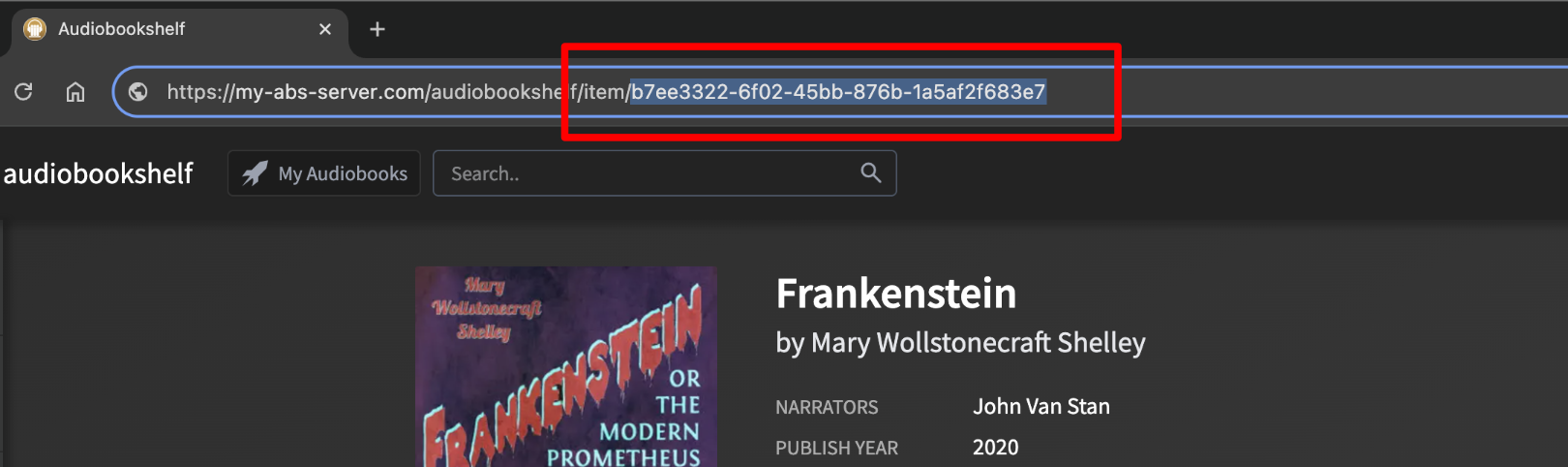
If you know the book's Audiobookshelf item ID, paste it into the same search bar to look the item up directly, regardless of which library you have selected.
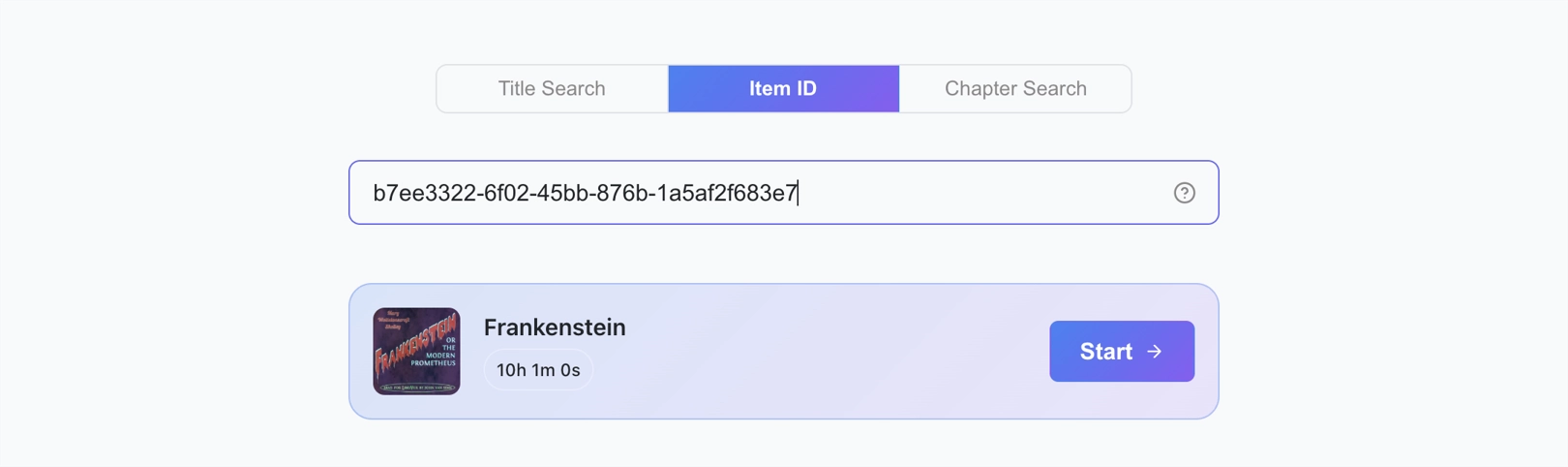
The item ID appears in the Audiobookshelf URL for the book, after /item/:
Chapter Search
Where Book Search finds a book you already have in mind, Chapter Search scans your Audiobookshelf libraries to find books whose chapters match rules you define. This makes it easy to discover books that need better chapters, e.g. books with no chapters, books without an intro chapter, books where all titles are just numbers, and so on.
For a step-by-step walkthrough, see Audit your library with Chapter Search.
Search page
The search page has three areas: a Library Selector and Search button at the top, the Rule List in the middle, and Library Stats and Clear Cache buttons at the bottom.
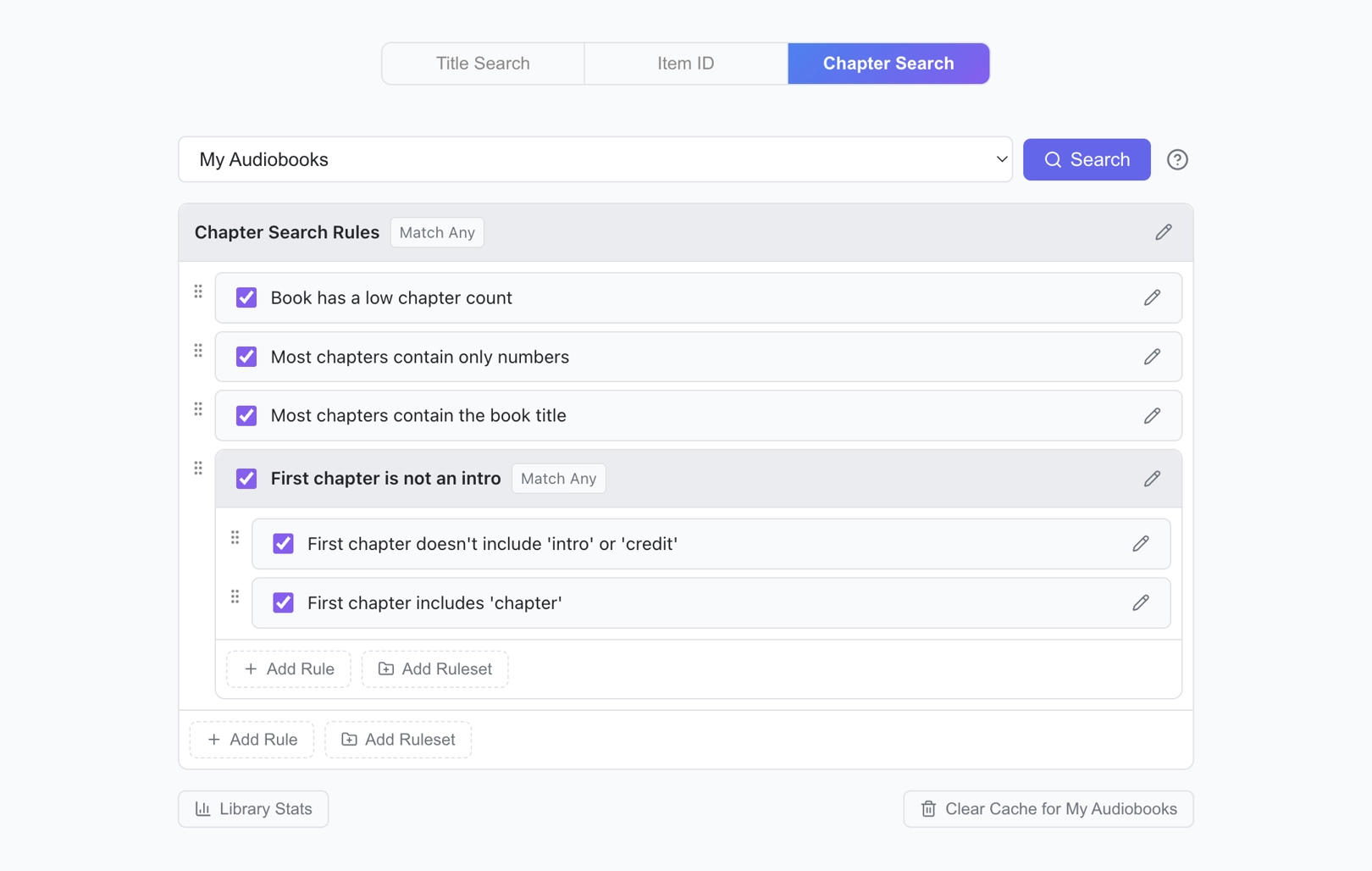
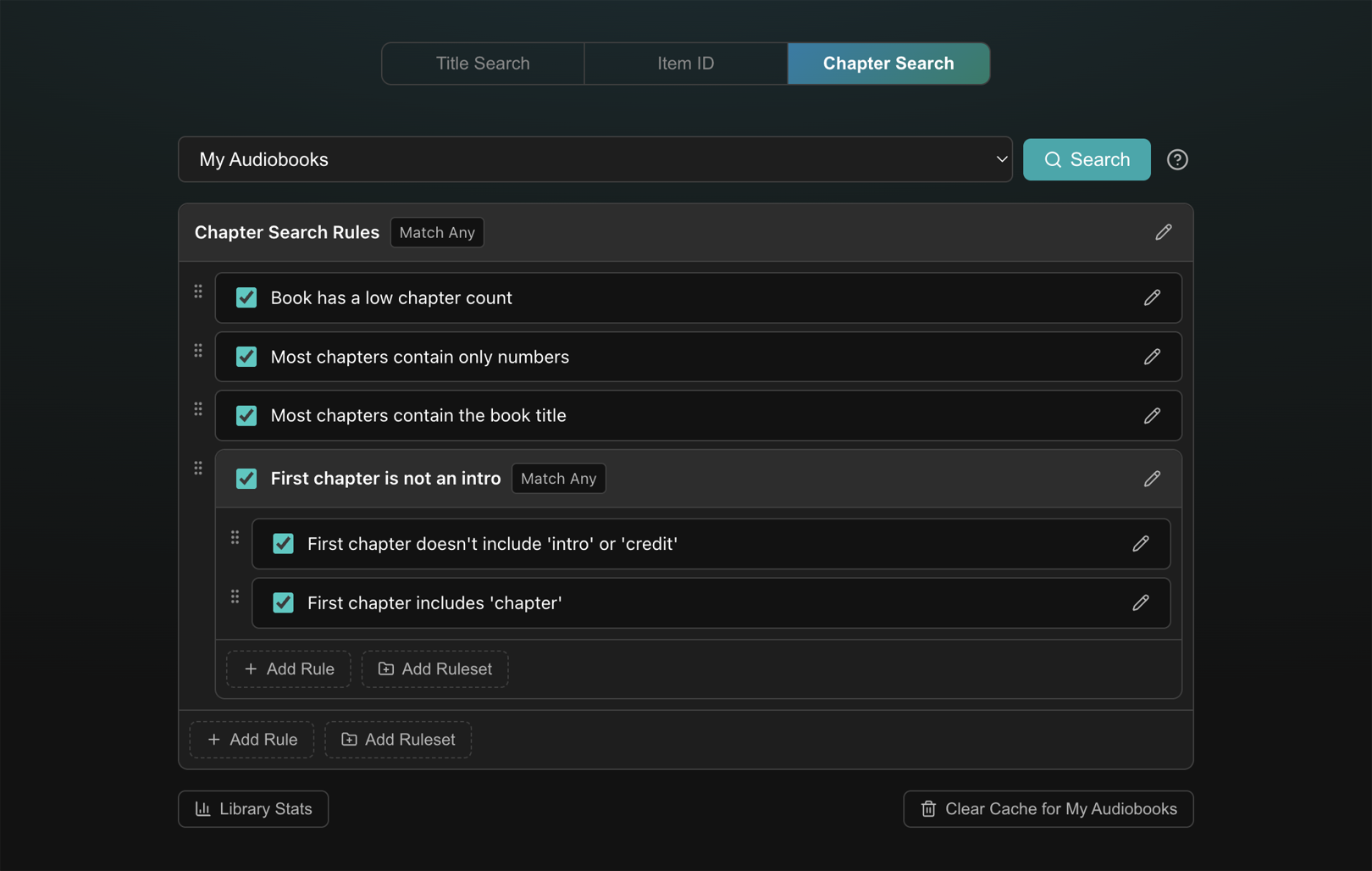
Use the Library Selector dropdown to choose a library, then click the Search button to start searching that library using the enabled rules.
Rules and Rulesets
A rule describes a pattern to look for in a book's chapter data. Rules are organized into rulesets, which are named groups of rules that can be nested. The main Rule List is a ruleset.
Working with the Rule List
Adding a rule
Click Add Rule at the bottom of any ruleset to open the Rule Editor. Configure the target, conditions, and an optional name, then click Save.
Editing or deleting a rule
Click the pencil icon on any rule row to open the Rule Editor. Click Delete to remove the rule, or click Clone to duplicate it as a new rule.
Adding a nested ruleset
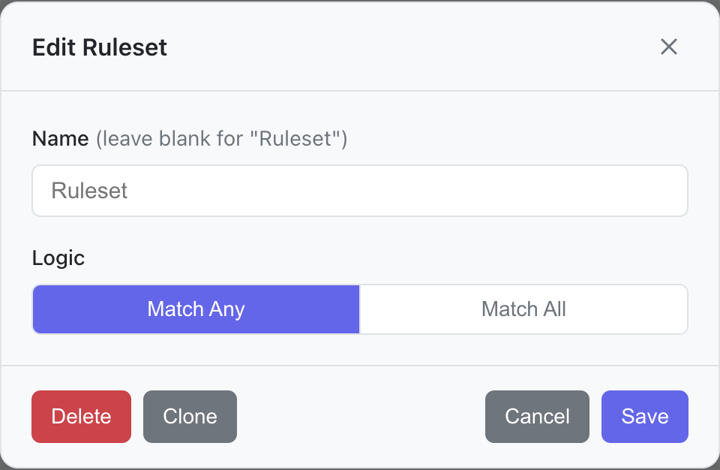
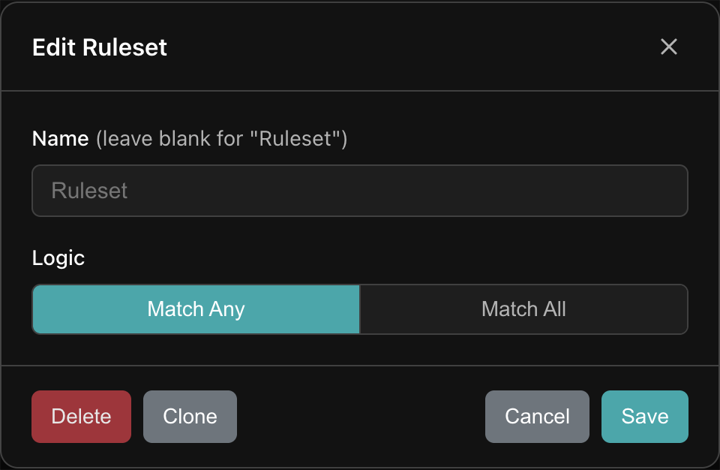
Click Add ruleset at the bottom of any ruleset to open the ruleset editor. A ruleset takes an optional name, and must use one of two modes for matching:
- Match Any: The ruleset matches if any rule inside it matches (OR logic).
- Match All: The ruleset matches only if every rule inside it matches (AND logic).
Editing a ruleset
Click the pencil icon on a ruleset's header to rename it, change its match mode, or delete it. Deleting a ruleset deletes all the rules and rulesets it contains.
Deleting the root ruleset
For the root ruleset (i.e. the main Rule List), the Delete button is replaced with a Reset All Rules button. Clicking this will delete the entire rule list and replace it with the default starting rules.
Enabling and disabling
Every rule and ruleset has an enable/disable checkbox. Disabled items are dimmed and skipped during searches. If a ruleset is disabled, all rules inside it are skipped too.
Drag-and-drop reordering
Rules and rulesets can be dragged to any position, including into or out of nested rulesets. This does not affect search results (order is irrelevant), but it helps you organize complex rule trees.
Rule Editor
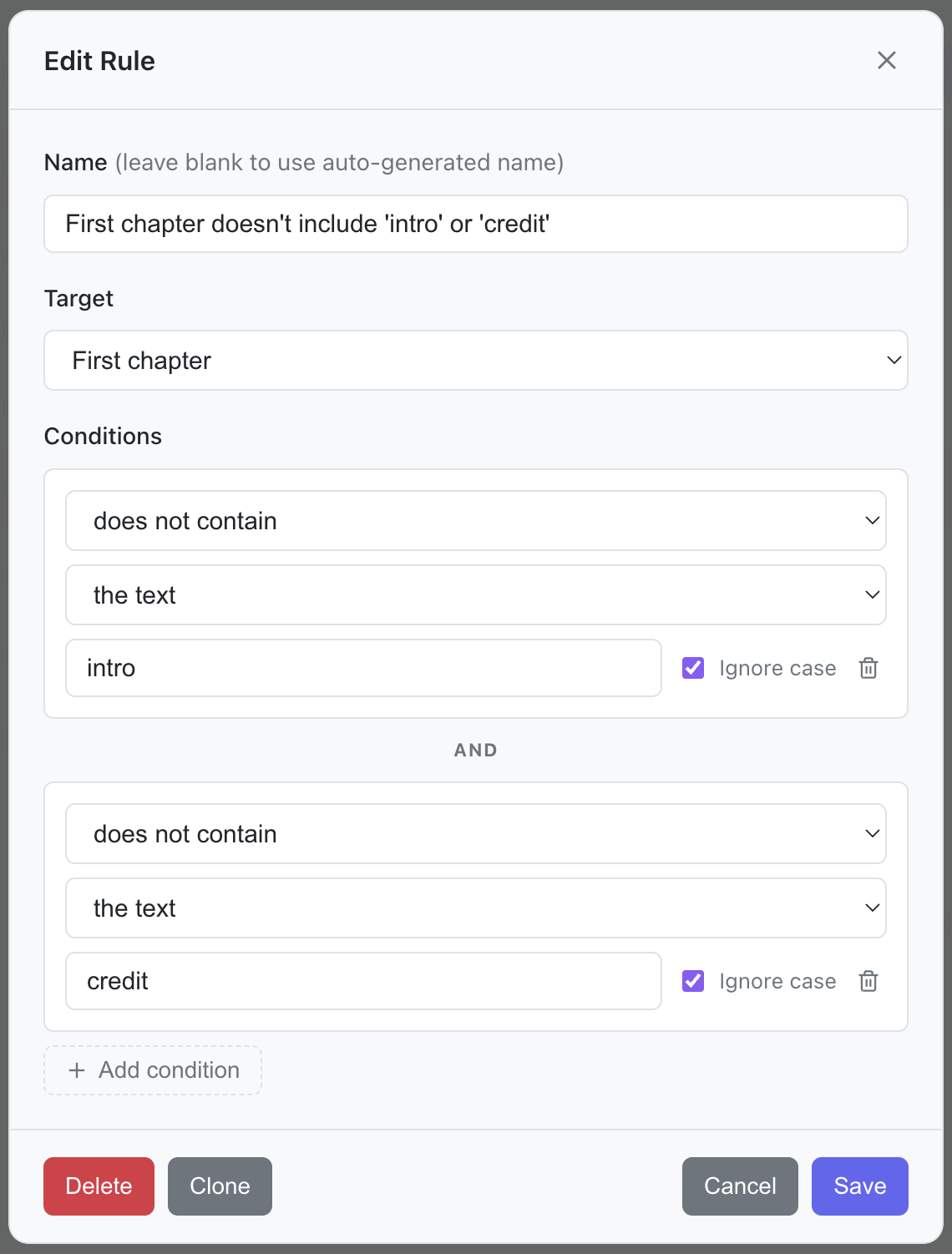
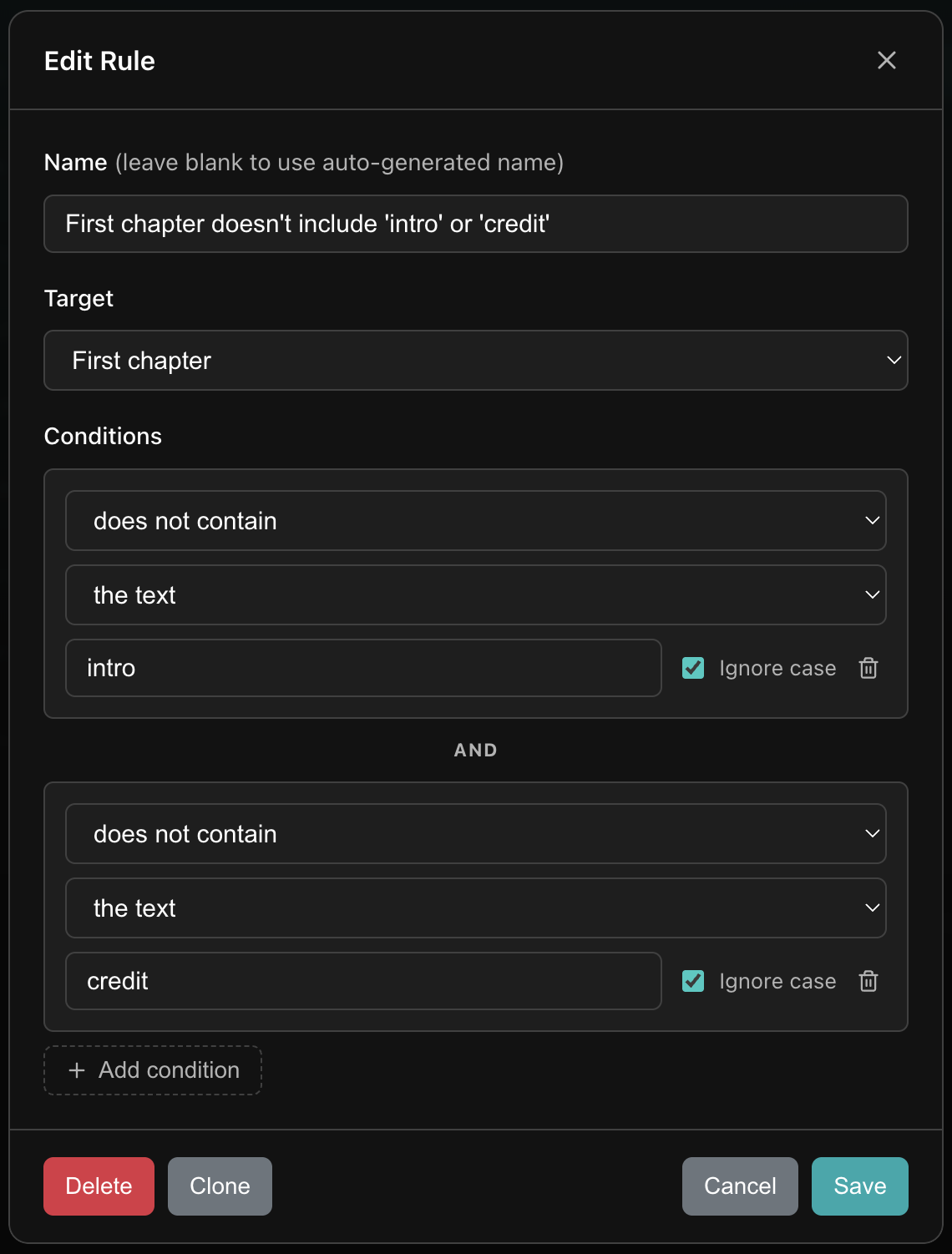
The Rule Editor allows you to change a rule's name, target, and conditions.
Rule Name
A custom name can be specified for any rule. This name does not have to be unique. If no name is specified, one will be automatically generated using the rule's target and conditions.
Rule targets
Each rule requires a Target that defines which chapters to inspect:
| Target | Meaning |
|---|---|
| Any chapter | True if at least one chapter matches |
| Every chapter | True if all chapters match |
| First chapter | True if the first chapter matches |
| Last chapter | True if the last chapter matches |
| Every middle chapter | True if every chapter except the first and last matches |
| Any middle chapter | True if any chapter except the first and last matches |
| Most every chapter | True if at least two-thirds of chapters match |
| Chapter count | True if the total chapter count matches a numeric condition |
Text conditions
For chapter-title targets, each condition specifies:
- Operation:
matches,does not match,contains,does not contain,starts with,does not start with,ends with, ordoes not end with - Comparison type:
the text(exact, case-optional),text similar to(fuzzy),a number,the book title(exact or similar), orthe regex - Value: The text or regex pattern to test against (not required for "a number" or book-title comparisons).
- Ignore case checkbox: available for exact text and regex comparisons.
Count conditions
For the Chapter count target, each condition is a numeric comparison: is, is not, is less than, is not less than, is greater than, or is not greater than, followed by a number.
Multiple conditions on one rule
All targets support multiple conditions joined by AND. Click Add condition in the rule dialog to add more. For example: "Any chapter starts with the text "track" AND contains a number."
Fuzzy matching
Conditions phrased as similar or similar to use fuzzy, case-insensitive comparison. They match text that is substantially similar to the provided value, which is useful for catching chapter titles that closely resemble a word, phrase, or the book title without needing an exact match.
Results page
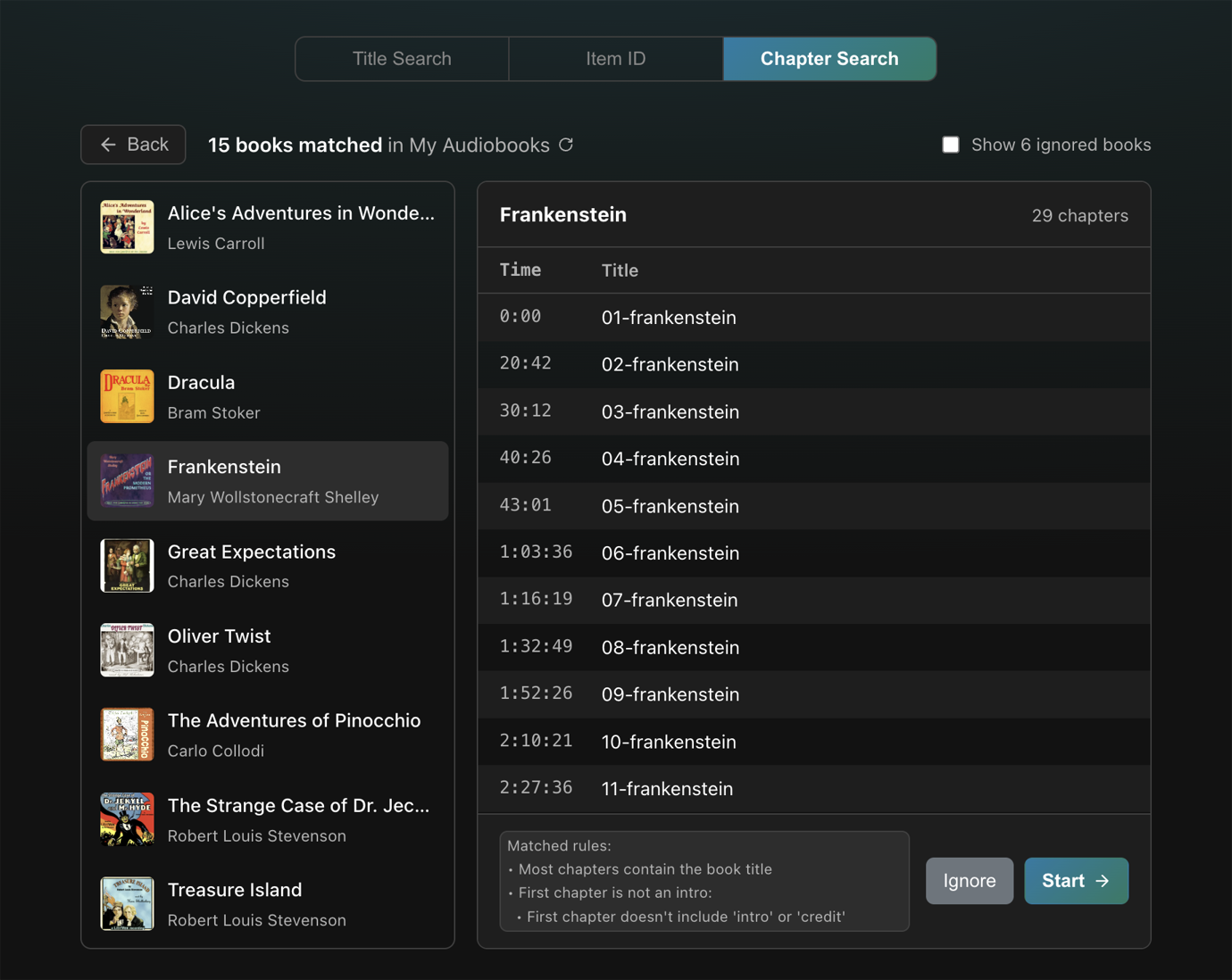
Book List (left panel)
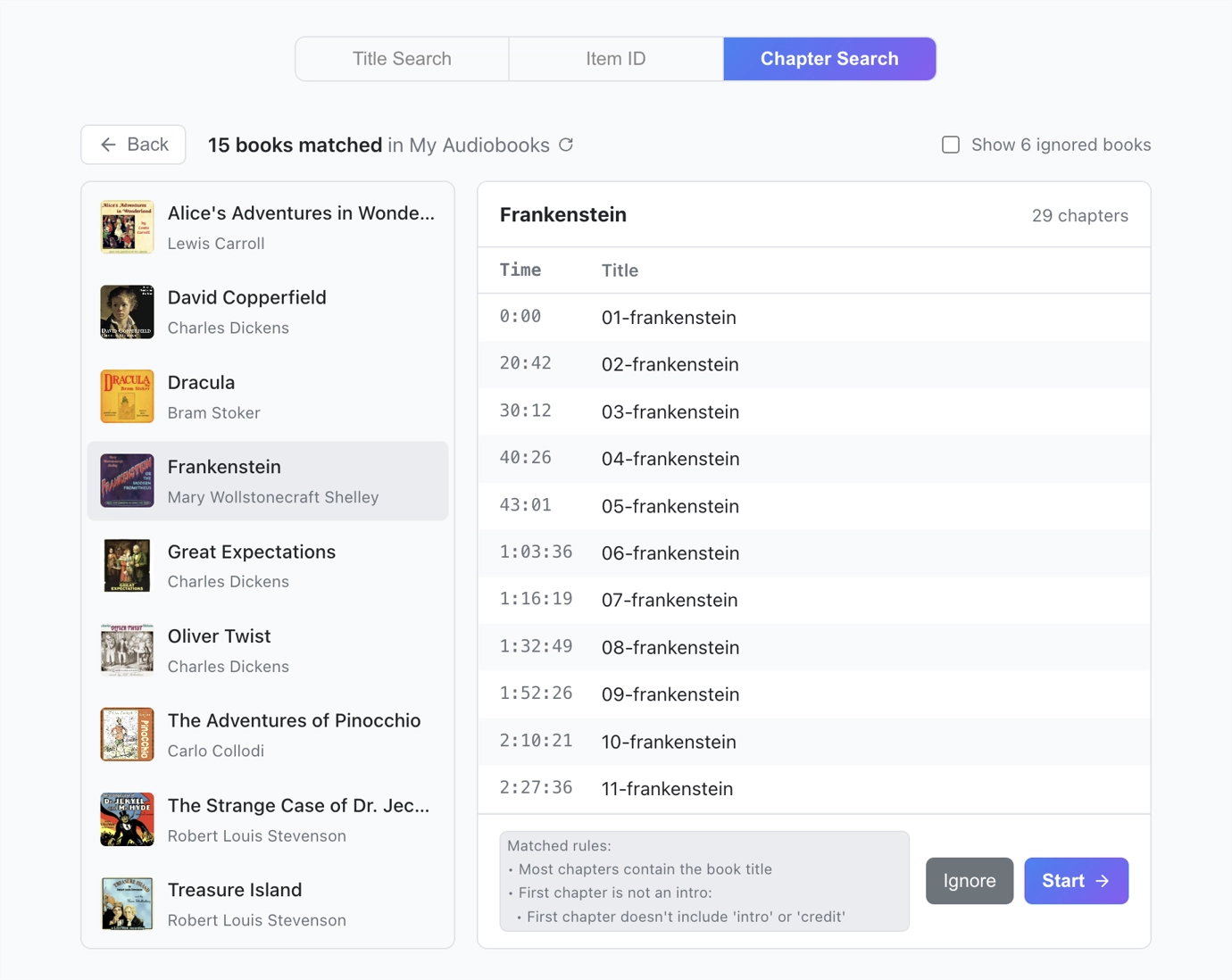
Shows every book that matched at least one rule, sorted alphabetically. Ignored books are hidden by default. Click a book to view its details in the right panel.
Book Details (right panel)
Displays the selected book's chapter list, as well as the following:
- Matched rules: A summary of which rules triggered for this book.
- Ignore / Unignore: Marks the book so it is excluded from the results list.
- Start: Begins processing this book.
Ignoring books
Click Ignore in the right panel to mark a book as ignored. Ignored books are excluded from the results list for the current and future searches. To see ignored books, check Show ignored books in the top right. From there you can Unignore a book to include it in future searches.
Use this to mark books you have already processed or that you know do not need attention.
Cache management
Achew caches chapter data from Audiobookshelf to speed up future searches. The first time you search a library, Achew performs a full sync that can take several minutes for large libraries. Subsequent searches are much faster.
Changes you make to a book through Achew are automatically reflected in the cache. However, edits made directly in Audiobookshelf or through another tool are not tracked, and the cache will be out of date until you manually refresh it. Two ways to do this:
- Click the Clear Cache at the bottom of the Search page. This forces a full re-sync of the entire library on the next search.
- Click the Refresh button at the top of the Results page. This re-syncs only the books currently in the results list.
Library Stats
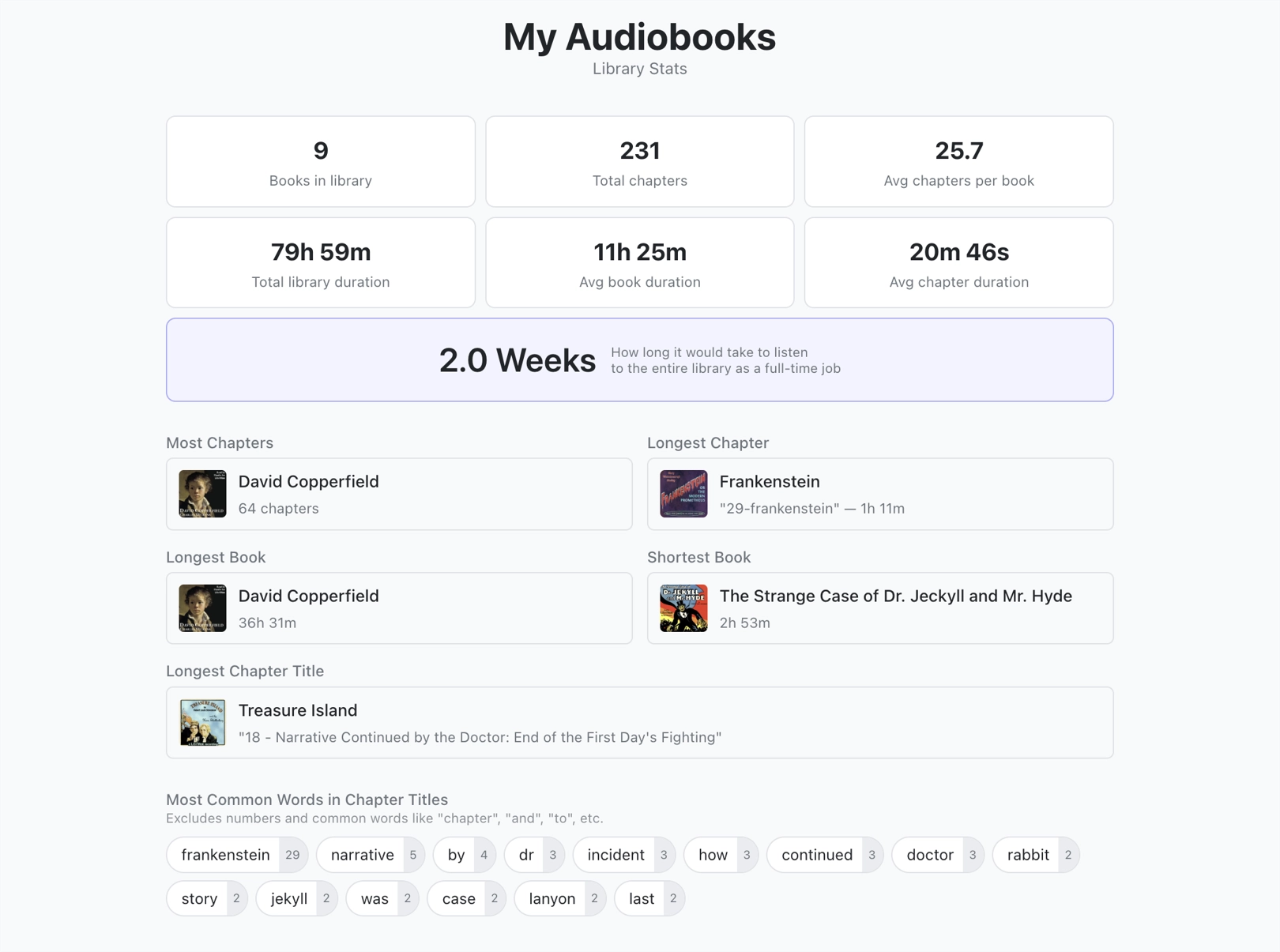
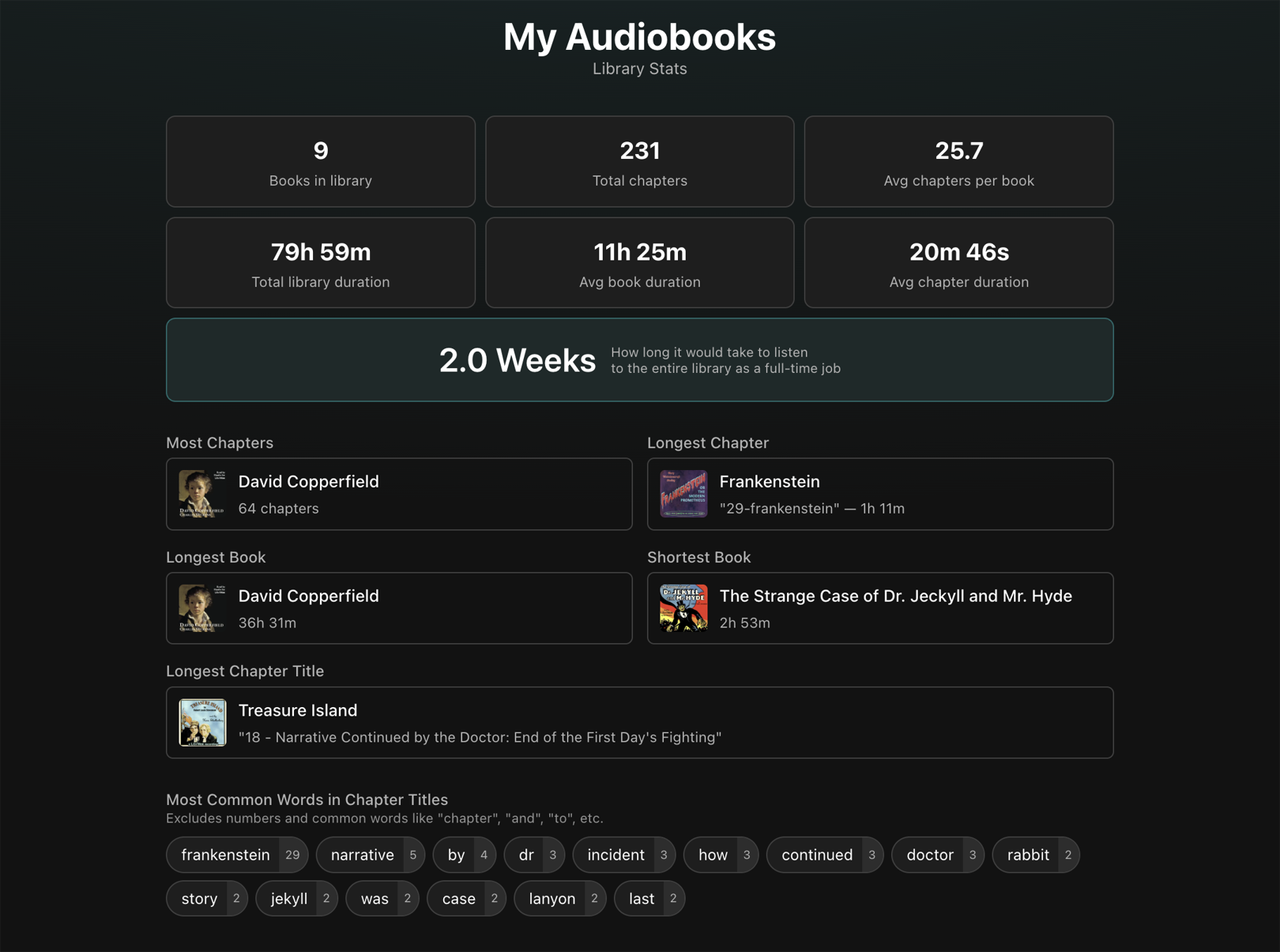
Click Library Stats at the bottom of the Search page to view statistics for the selected library:
- Book count, chapter counts, and averages
- Total and average book/chapter durations
- How long it would take to listen to the entire library at roughly 40 hours/week
- Books with the most chapters, longest chapter duration, longest total duration, and shortest total duration, and longest chapter title
- Most frequent words appearing in chapter titles (common words and numbers excluded)