Start from scratch with Smart Detect
Follow these steps when your book has no usable chapter data: No chapters in Audiobookshelf, no embedded chapters, and Audnexus has nothing for it. You'll build chapters from the audio itself.
Run Smart Detect
- Select the book.
- Choose Smart Detect on the Select a Workflow screen.
- Leave the Dramatized checkbox off unless the book has music or sound effects (dramatized detection is significantly slower).
- Click Start Smart Detect. Achew analyzes the audio; this can take anywhere from a few seconds to several minutes depending on the book's length and your hardware.
Tune the cue selection
When detection finishes, you'll land on the Initial Chapter Selection screen. With no comparison Reference available, rely on the timeline and histogram:
-
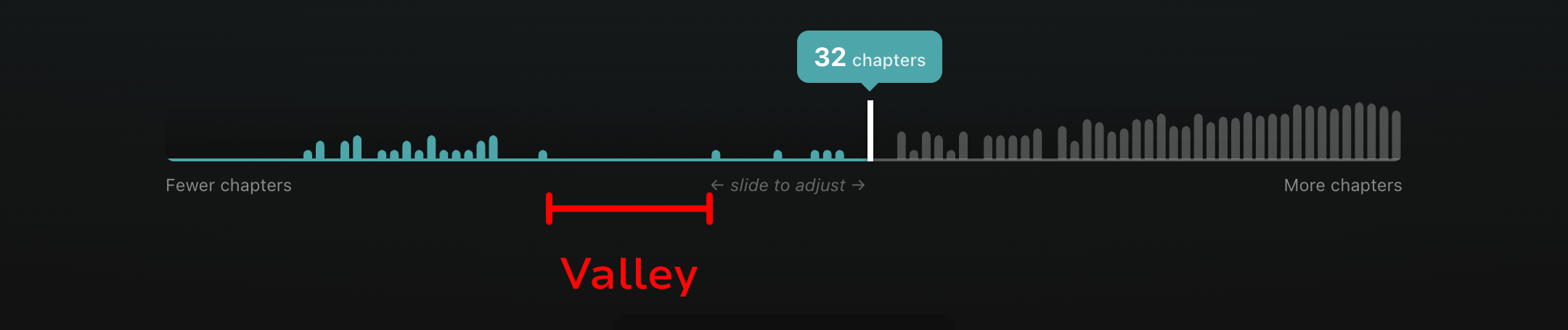
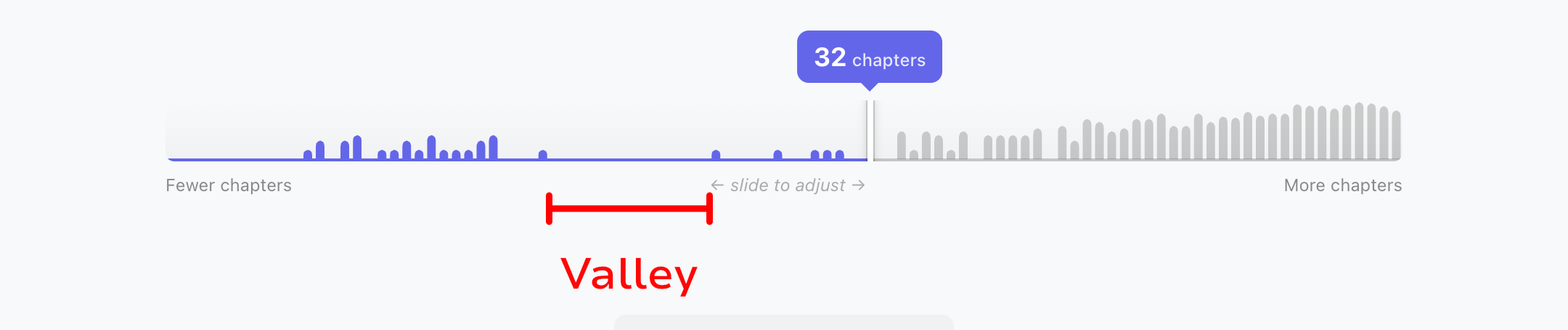
Drag the Cue Selection Slider to set how many cues become chapters. If you're not sure where to start, look for a clear valley in the histogram and place the slider just into the right slope of it. For example:
-
Glance at the Timeline Visualization above. Aim for a roughly even distribution of tick marks across the book's length.
- If the prologue, foreword, or epilogue looks like it's being missed near the edges of the timeline, raise the Intro/Outro Sensitivity slider. Lower it if you'd rather exclude that material.
When in doubt, err on the side of more cues. Extras are easy to delete in the editor; missing chapters are harder to find.
Click Create Chapters when the timeline looks right.
Transcribe titles
On the Transcribe Titles screen, pick your transcription settings and click Transcribe. Achew transcribes the first few seconds of audio at each chapter timestamp into a working title.
Polish in the editor
- Scan the chapter list. Use the play button to spot-check timestamps or titles that look odd.
- Delete obvious false positives with the delete button.
- If a chapter is missing, follow Fill in a few missing chapters to insert it.
- Run AI Cleanup to normalize the transcribed titles (capitalization, chapter numbering, intro/outro labels).
Submit or export
Click Review Selected, then submit to Audiobookshelf or export.
Scenario: A Reference exists, but is partly wrong
If you have a Chapter Reference whose timestamps are mostly accurate but you suspect Smart Detect can do better, make sure to add it from the Smart Detect screen before clicking Start Smart Detect. Then on the Initial Chapter Selection screen:
- Toggle the Reference under Compare to in the timeline. Tick marks become color-coded by alignment quality, with the alignment percentage shown next to it.
- Adjust the Cue Selection Slider to maximize alignment.
- Optionally, enable the Reference under Include unaligned chapters to fold in any of its chapters that Smart Detect missed.