Chapter Editor Overview
The editor shows a list of chapters and an Action Bar.
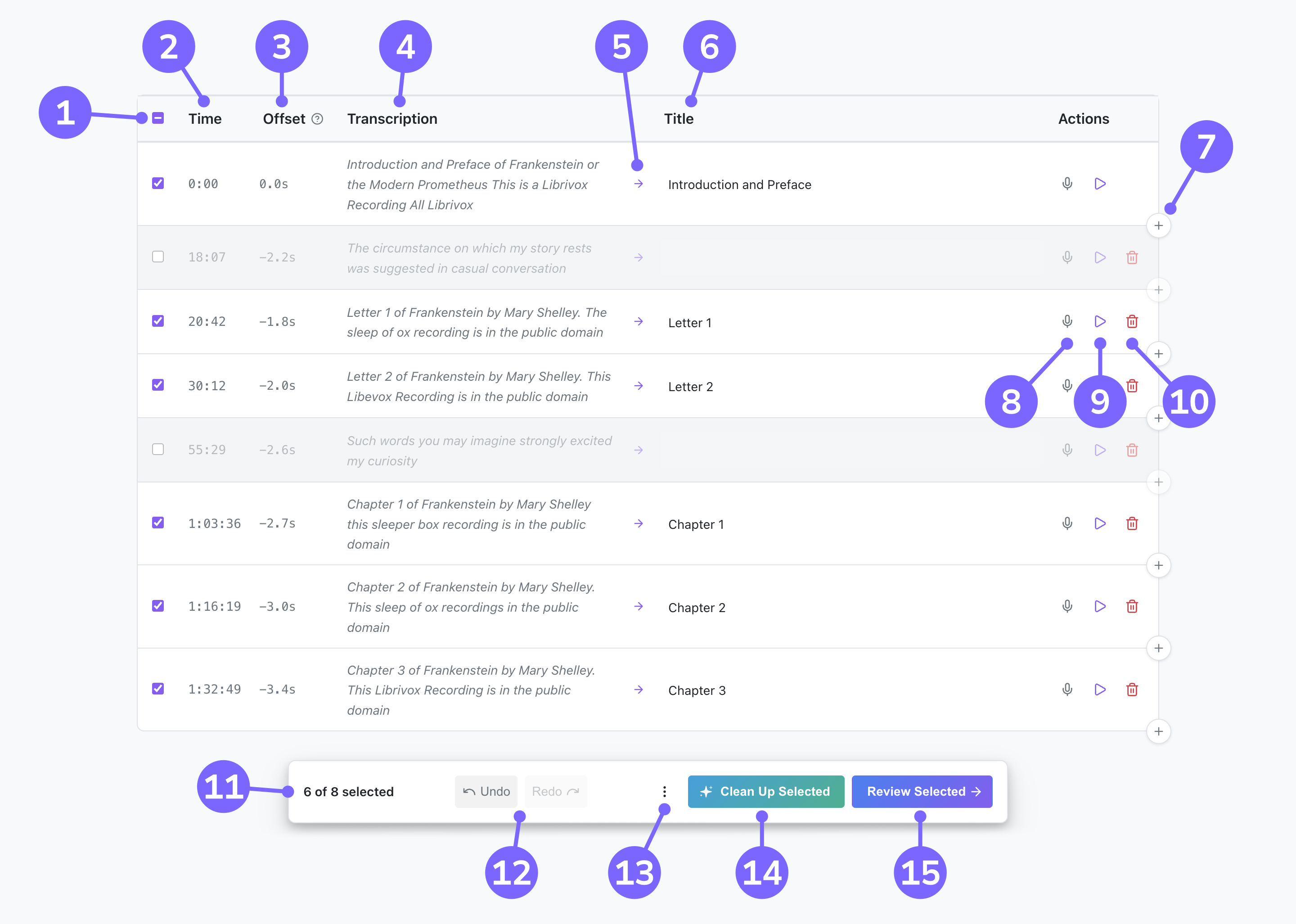
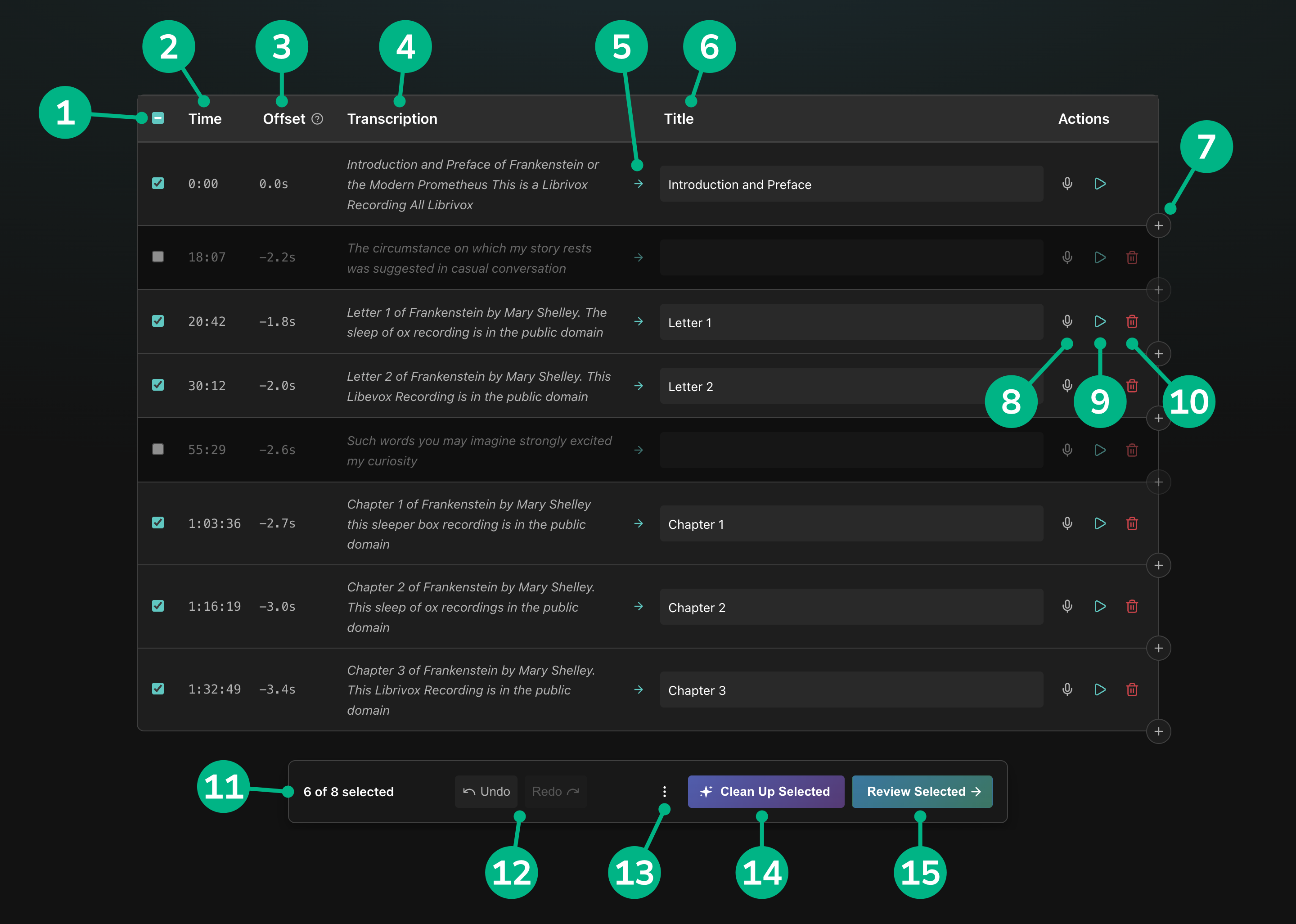
Editor Components
| # | Component | What it does |
|---|---|---|
| 1 | Checkbox | Selects or deselects the chapter. Shift-click another checkbox to apply the same selection state to every chapter in the range between the two clicks. The checkbox at the very top can be used to select/deselect all chapters. |
| 2 | Timestamp | The chapter timestamp. Clicking on the timestamp allows you to edit it:   While editing, use the ‹ and › buttons (or Keyboard Shortcuts) to jump to nearby detected cues. The very first chapter (at timestamp While editing, use the ‹ and › buttons (or Keyboard Shortcuts) to jump to nearby detected cues. The very first chapter (at timestamp 0) is fixed and cannot be edited. Toggle between formatted timestamps and raw seconds in the editor settings. |
| 3 | Offset | Shown when using the Realignment workflow. Shows the difference between the original Reference timestamp and the realigned one. A warning icon appears on low-confidence or guessed alignments; give those a listen to verify accuracy before submitting your chapters. |
| 4 | Transcript | The raw transcript for the chapter, non-editable. Long transcripts are truncated; hover over the transcript to see the full text. The transcript column can be hidden via the editor settings. |
| 5 | Use Transcript | Replaces the current title with the transcribed text. Disabled when there is no transcript, or when the title already matches the transcript. |
| 6 | Title | The editable chapter title. |
| 7 | Add Chapter | Opens the Add Chapter Dialog to insert a new chapter. Chapters can be added from cues, Chapter References, deleted chapters, or a specific timestamp. |
| 8 | Transcribe | Transcribes the audio just for this chapter using the current transcription settings. |
| 9 | Play | Starts playback at this chapter's timestamp. Click again to stop. |
| 10 | Delete | Deletes the chapter. Recoverable using the Undo button, or via the Deleted tab in the Add Chapter Dialog. The very first chapter (timestamp 0) cannot be deleted. |
| 11 | Action bar | The sticky bar at the bottom of the screen. Shows the selection count and buttons for additional actions. |
| 12 | Undo Redo |
Step backward and forward through edits you've made (title edits, timestamp edits, deletions, AI Cleanup, etc). See Undo and Redo. |
| 13 | Menu | Opens the Action Bar Menu containing settings, editing tools, and quick actions. |
| 14 | AI Cleanup | Opens the AI Cleanup dialog, which uses an LLM to help you normalize the capitalization, numbering, punctuation, etc. of the selected chapters. |
| 15 | Review | Proceeds to the Review and Submit screen using the selected chapters. |
| 16 | / Dock | Docks the Action Bar to the left or right edge of the screen (hidden on small screens). See Docking the Action Bar. |
Need to redo an earlier step?
The Back button at the top-left of the screen opens the Back Menu, which lets you jump back to earlier steps (workflow selection, initial chapter selection, transcription, etc). Picking New Audiobook abandons the current book entirely and returns you to book selection. Note that any chapter edits and undo history will be lost.
Action Bar Menu
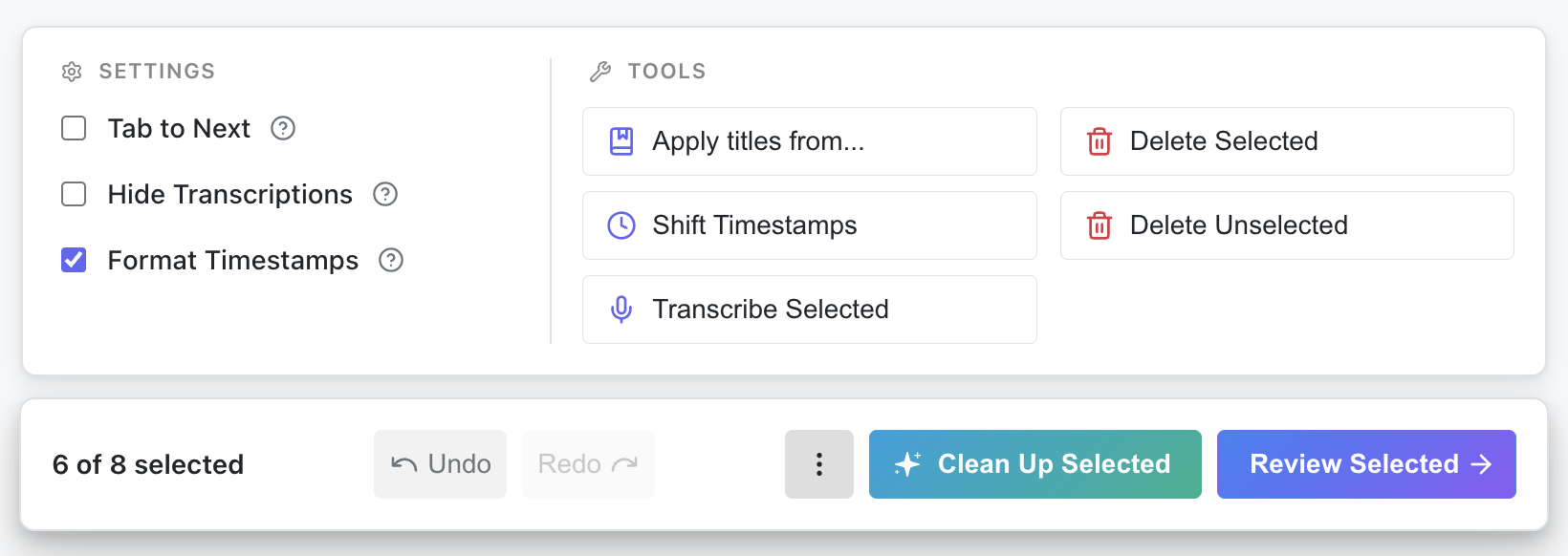
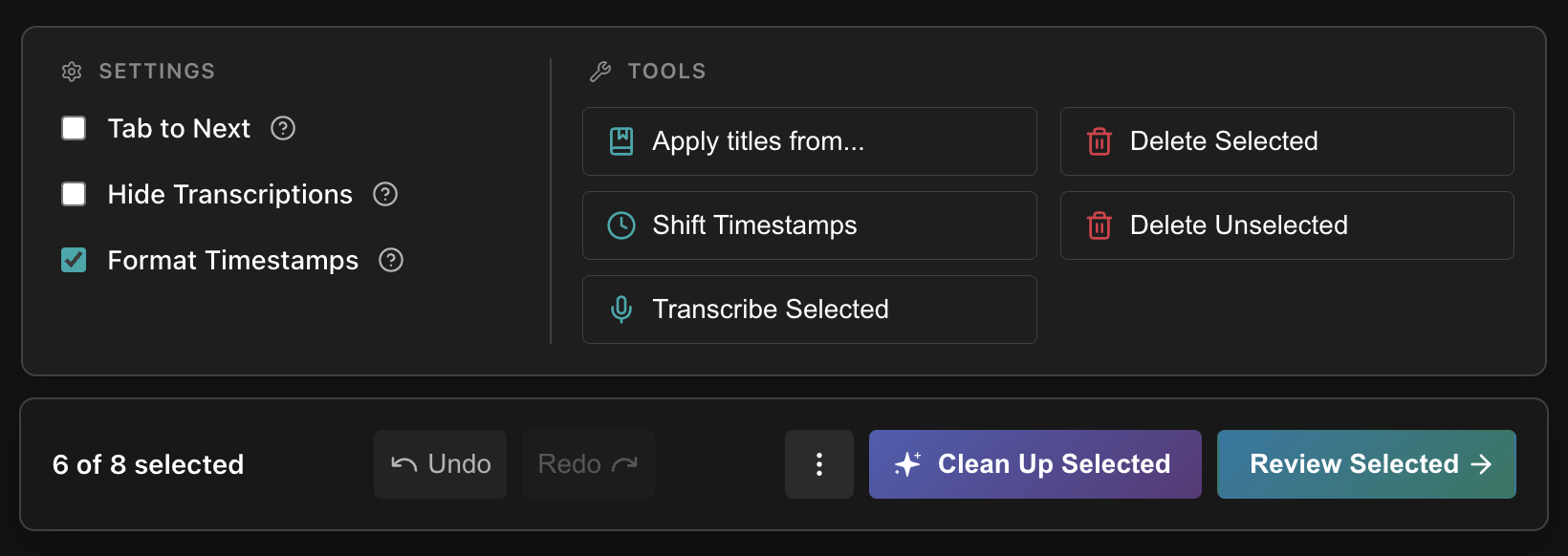
When the Action Bar is docked at the bottom of the screen, most items are hidden to save space. Clicking the menu button () reveals these other settings, tools, and actions.
Editor Settings
- Tab to Next: If enabled, pressing Tab on the keyboard while editing a chapter title will move focus to the title of the next selected chapter.
- Hide Transcripts: If enabled, the Transcript column will not be shown.
- Format Timestamps: If enabled, timestamps will be displayed using the
HH:MM:SSformat instead of displaying raw seconds.- Fractional Seconds: If enabled, formatted timestamps will display hundredths of a second, e.g.
01:23.45. Only available when Format Timestamps is enabled; unformatted timestamps always show fractional seconds.
- Fractional Seconds: If enabled, formatted timestamps will display hundredths of a second, e.g.
Tools
Tools open a dialog where you can configure and preview operations before applying them.
- Edit Titles allows you to manually edit titles in bulk: find & replace, change case, add sequential numbering, and more.
- Shift Titles moves chapter titles forward or backward across chapters in bulk.
- Apply Titles from... allows you to set titles from Chapter References.
- Shift Timestamps allows you to shift timestamps in bulk.
Actions
Actions apply immediately to the currently selected chapters.
- Quick Tidy applies your whitespace, punctuation, numbering, and casing preferences to the selected titles. You can use the gear icon to set your preferences.
- Transcribe transcribes the selected chapters using current transcription settings.
- Delete / Delete Unselected deletes every selected (or unselected) chapter.
Docking the Action Bar
Clicking the or button on either side of the Action Bar will dock the Action Bar to that edge of the screen.

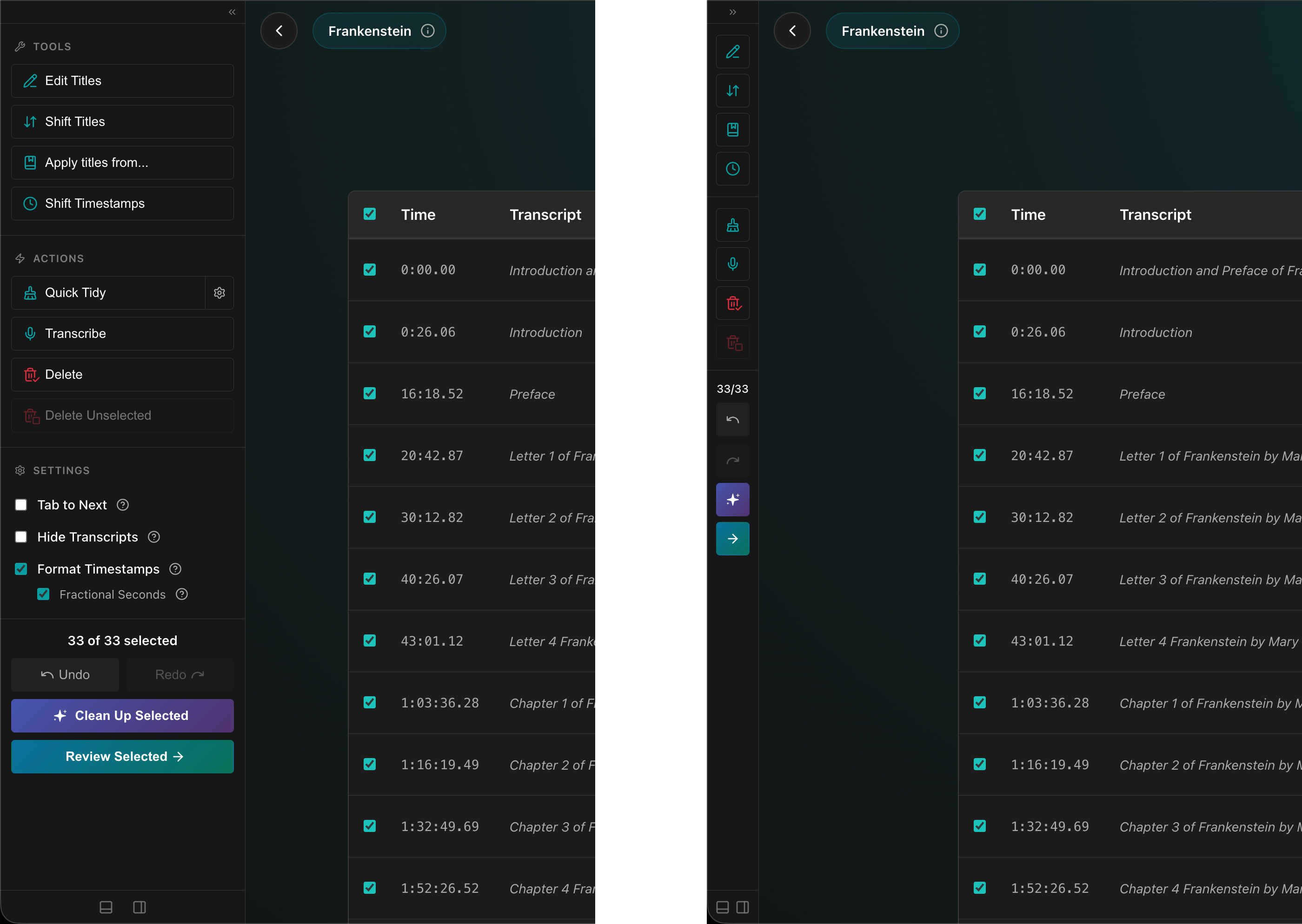
Action Bar docked to the left (expanded/collapsed)
Every item from the Action Bar Menu is shown directly in the toolbar, in sections from top to bottom: Tools, Actions, Settings, and then the Action Bar items (selection count, Undo/Redo, Clean Up Selected, and Review Selected), followed by buttons to dock the bar back to the bottom () or to the opposite side.
Collapsing the docked toolbar
The small toggle ( or ) at the top of the toolbar collapses it into a narrow, icon-only strip to stay out of your way. While collapsed:
- Buttons show only their icons; hover over any button to see its function.
- The Settings section and the Quick Tidy gear are hidden. Expand the toolbar to reach them.
- The selection count is shortened (e.g.
3/12).
Your chosen dock position and collapsed state are remembered by your browser. On small screens (such as phones) the Action Bar always stays docked to the bottom and the dock buttons are hidden.
Proceeding to Review
When the chapter list looks right, click Review Selected to move to the Review and Submit screen where you can perform a final review of the chapters and then either submit them to Audiobookshelf or export them to various formats.