Logs and Support
Where logs go
Logs stream to stdout/stderr from the container.
Use --tail=200 to cap the output size.
When you run ./run.sh directly, logs print to the terminal. Redirect to a file if you need a copy:
What to capture before asking for help
- The exact Achew version you are running (visible in the bottom-right corner of the app).
- The install method (Docker image tag, or native OS and version).
- General system info (CPU, RAM, HDD vs SSD, etc.)
- The part of the app you were in when the problem occurred.
- The full, exact text of any error message.
- Any relevant logs.
- For audio or processing issues, the audio file info from the Audiobook Info dialog.
How to find your book's audio file info
To get audio file info, click the book title near the top left of the page to open the Audiobook Info dialog:
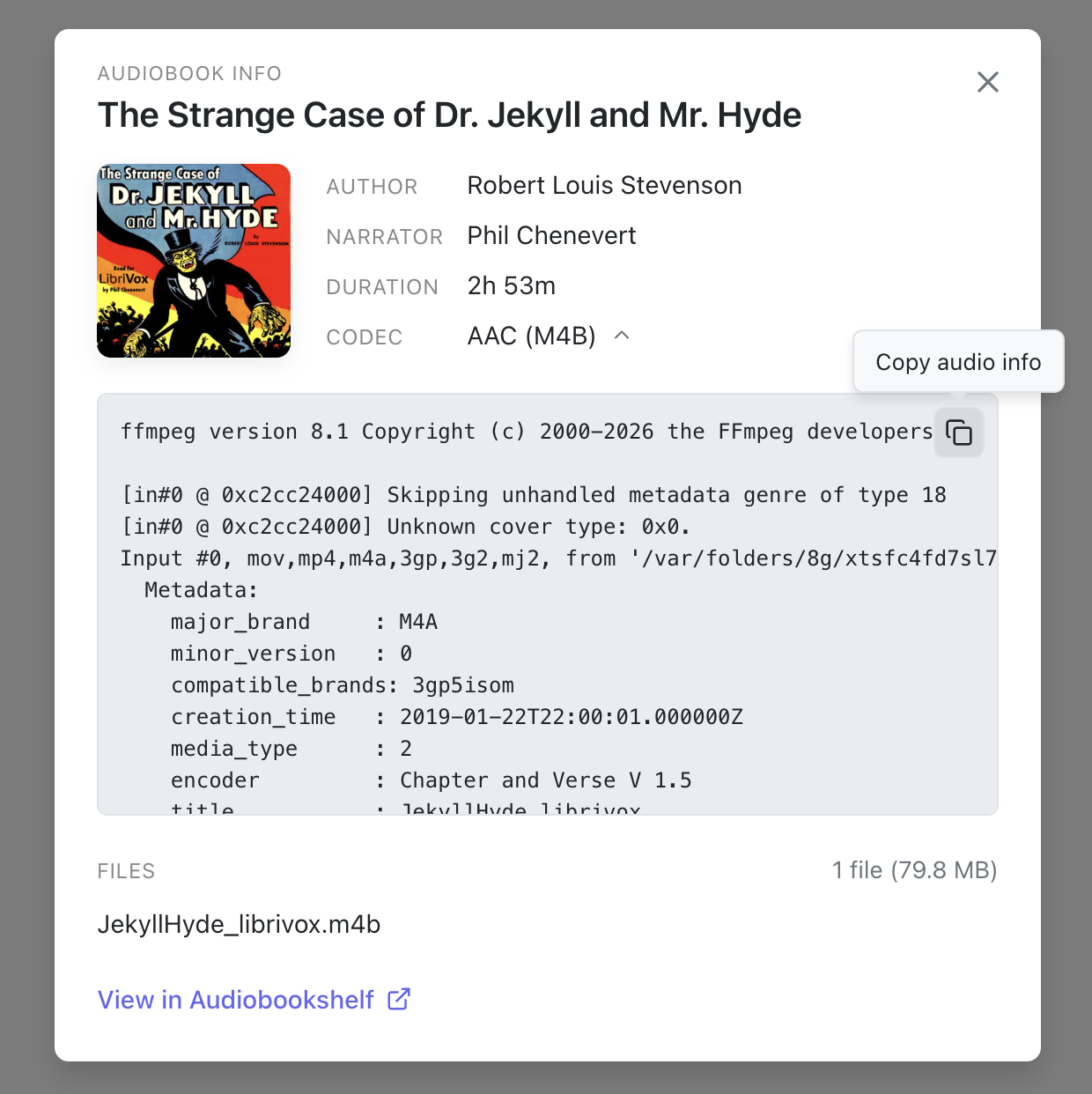
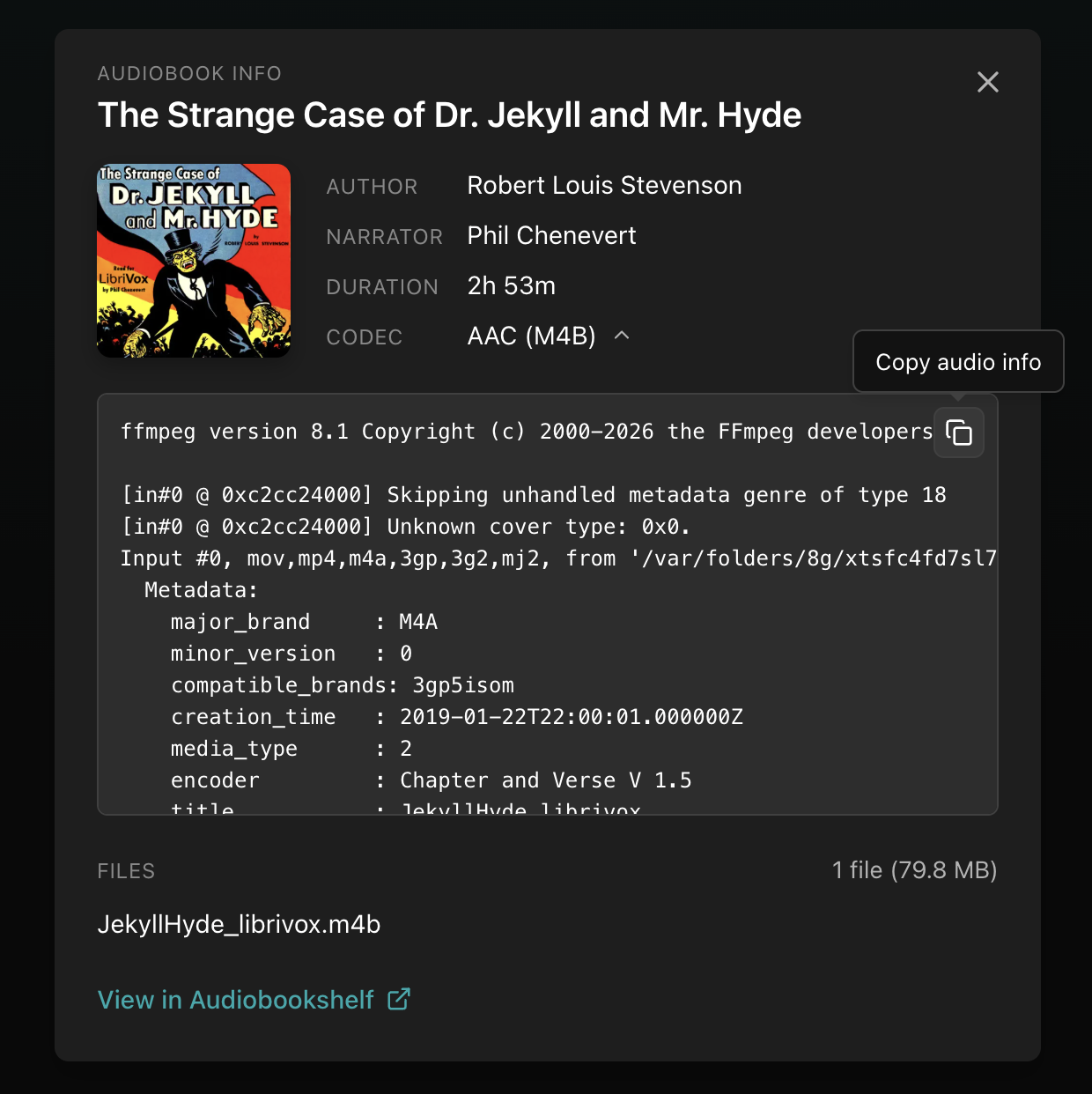
Clicking the small arrow next to the Codec row will show the audio file info. You can then use the copy button (near the top right of the info section) to grab the data for a bug report. Be sure to redact any personal or otherwise sensitive information before sharing the data.
Filing a bug report
Check existing issues first to see if it has already been reported. If not, open a new issue and include the details above and, if relevant, a redacted screenshot.
Redact before posting
Screenshots and logs may contain sensitive information. Crop, blur, or remove anything you don't want to share before posting.
Requesting a feature
Post in the Ideas category on GitHub Discussions and describe what you'd like Achew to do and the problem it would solve. Check existing discussions first to avoid duplicates.
Asking questions
For open-ended questions (not bugs or feature requests), use the GitHub Discussions page.